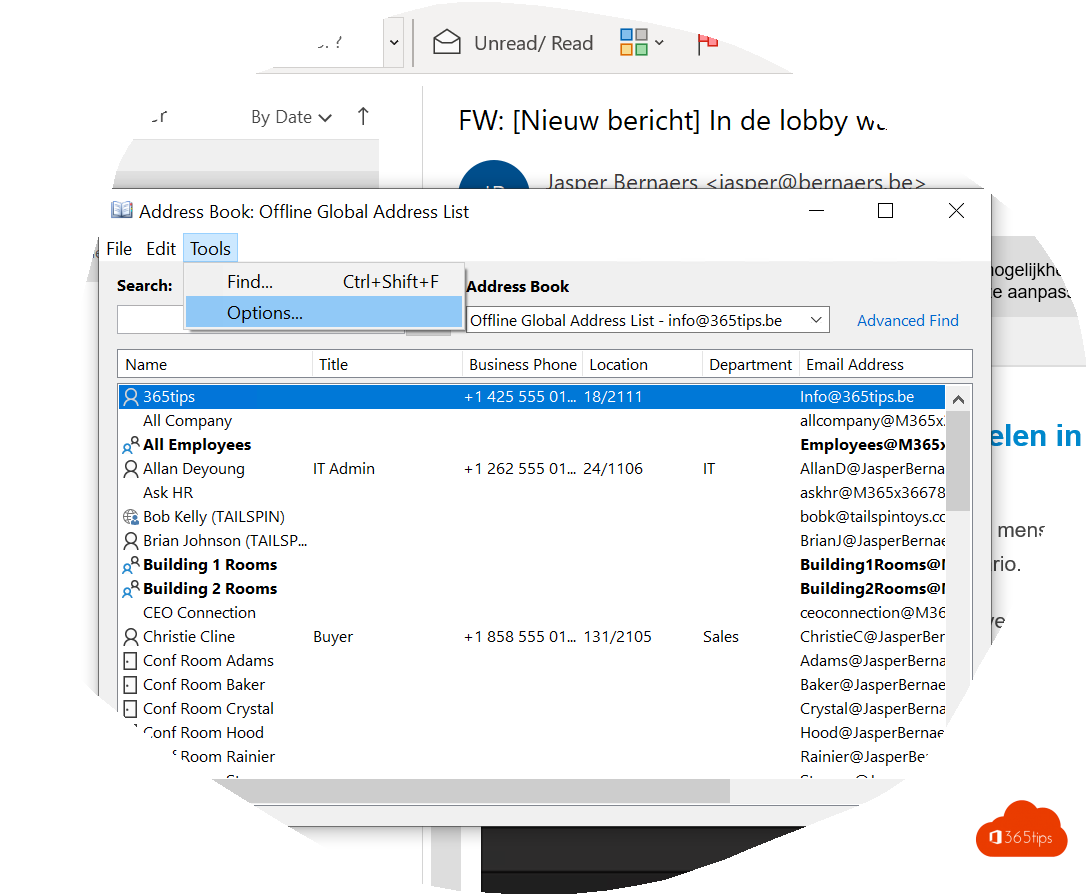
When you look up a colleague in Outlook, do you keep landing in your own contacts or in the wrong address list? Then change the default address book. Outlook then opens the list you need most right away, for example the Global Address List with all your colleagues. These steps apply to classic Outlook for Windows.
1. Open the address book
- Open classic Outlook.
- On the Home tab, select Address Book, or press Ctrl+Shift+B.

2. Address book options
- In the address book window, choose Tools > Options.
- Under When opening the address book, show this address list first, choose the list you want to see by default.

3. Choose the right list
Want to find all colleagues in your organization? Choose the Global Address List. Mostly working with your own contacts? Choose Contacts.
In the same window you also set the order in which Outlook checks names when sending. Move the list you use most to the top with the arrows.
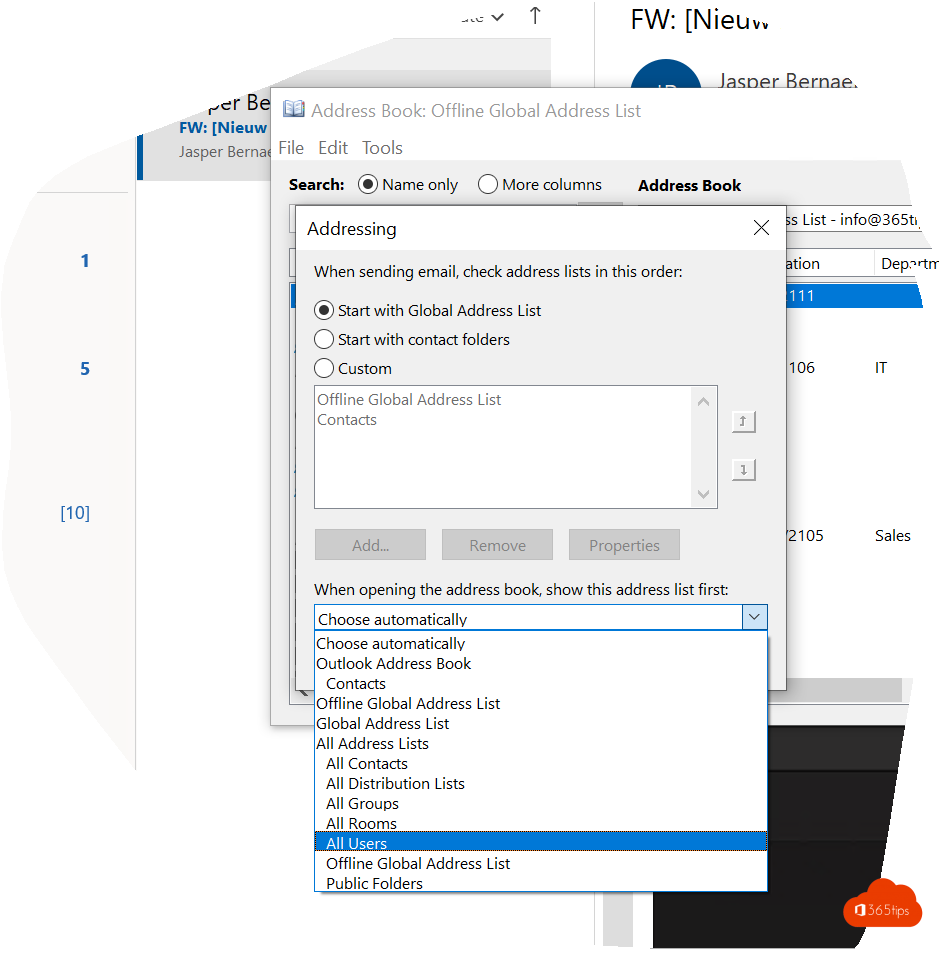
Select OK. Next time you open the address book, you see the chosen list right away.
What about the new Outlook?
The new Outlook for Windows and Outlook on the web don't have this option. There you search via People in the side bar or directly in the To field. Outlook then searches your contacts and your organization's address list at the same time. In People, you choose on the left which list or folder to view.
Tip for admins
Users don't see certain colleagues in the Global Address List? Check that the mailbox isn't hidden from address lists, and whether your organization uses separate address book policies.
Also see Outlook email tips for Microsoft 365 and the new Outlook for Windows.
Read also
The most useful tips for email in Microsoft Outlook
The new Outlook for Windows: switching and what changes
Create a dynamic distribution group in Exchange Online
Nederlandstalige versie: Het standaardadresboek aanpassen in Outlook