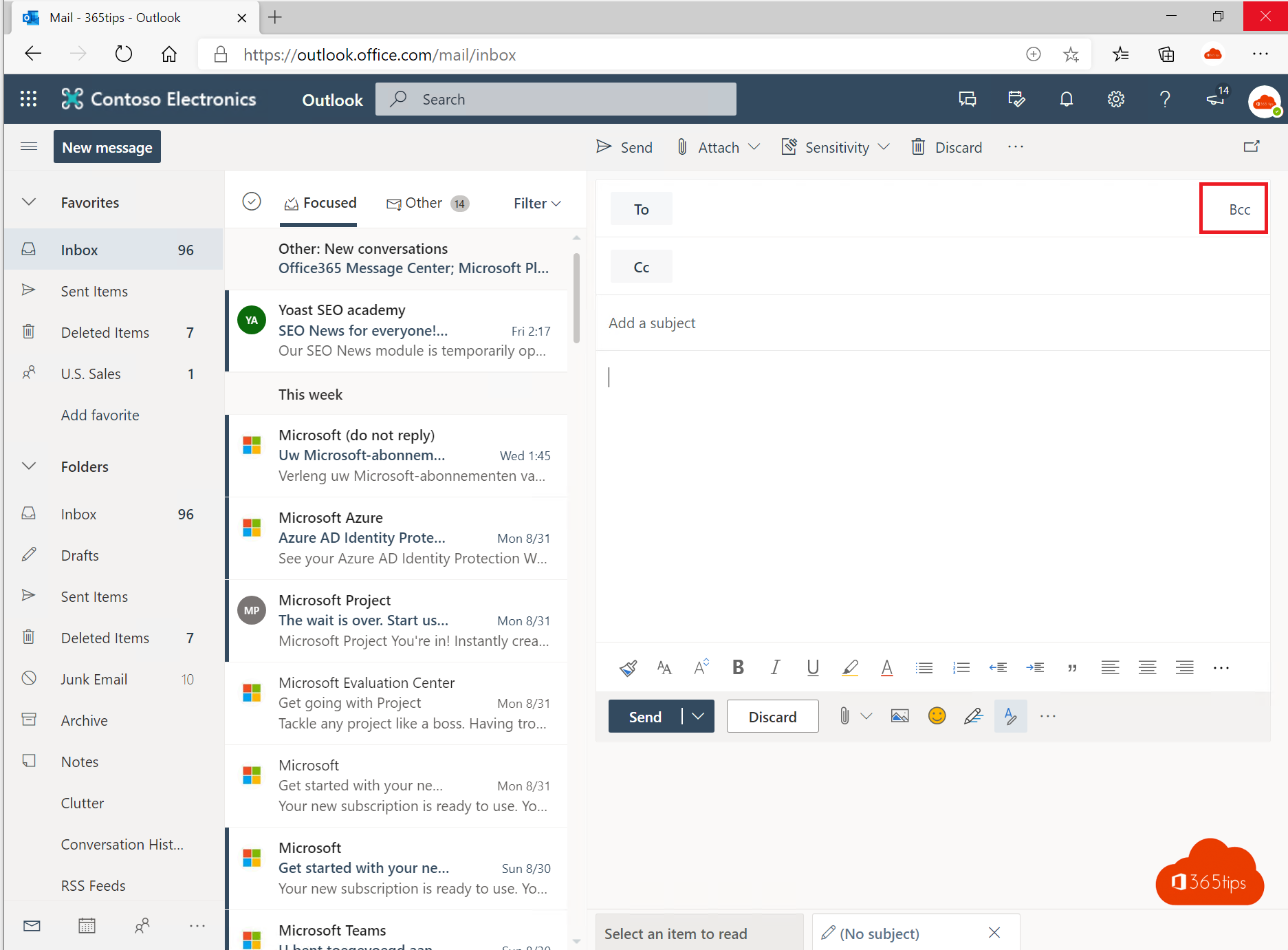
Sending an email to a large group of people who don't know each other? Put them in BCC (blind carbon copy). That way nobody sees the others' email addresses. It's polite and often a privacy requirement too (GDPR). This article shows how to show the BCC field in Outlook and when to use it.
To, CC or BCC?
- To: the people you expect to act or reply.
- CC: people who need to be kept informed. Everyone can see them.
- BCC: people who receive the email but are invisible to the other recipients.
In the new Outlook and on the web
In a new message, select Bcc on the right of the To field. Want it always visible? Go to Settings > Mail > Compose and reply and tick Always show Bcc.

In classic Outlook
Open a new message and select the Options tab > Bcc. Outlook remembers this for future messages.

On your phone
In the Outlook app, tap the arrow next to To in a new message to show CC/BCC.
Tips
- Put yourself in To and all recipients in BCC, so the top of the message is never empty.
- Someone in BCC who selects Reply all only replies to you and the visible recipients, not to the other BCC recipients.
- Emailing the same group regularly? Use a distribution list or a newsletter tool.
- Sending hundreds of emails at once can get you throttled: Microsoft 365 limits the number of recipients per day.
Sent to the wrong people? See how to recall an email.
Read also
How to create a distribution list in Microsoft 365 and use it in Teams
Recall an email in Outlook with Exchange Online
Schedule, delay or undo sending an email in Outlook
Nederlandstalige versie: Het BCC-veld tonen en gebruiken in Outlook