Copilot in Microsoft Edge is handy when you code: it explains code on a web page, helps find errors and writes examples. But it's something different from GitHub Copilot, which completes code in your editor. Here's what each one does and how to use them.
Copilot in Windows is now a separate app, and the settings in Edge may differ per version.
Copilot in Edge
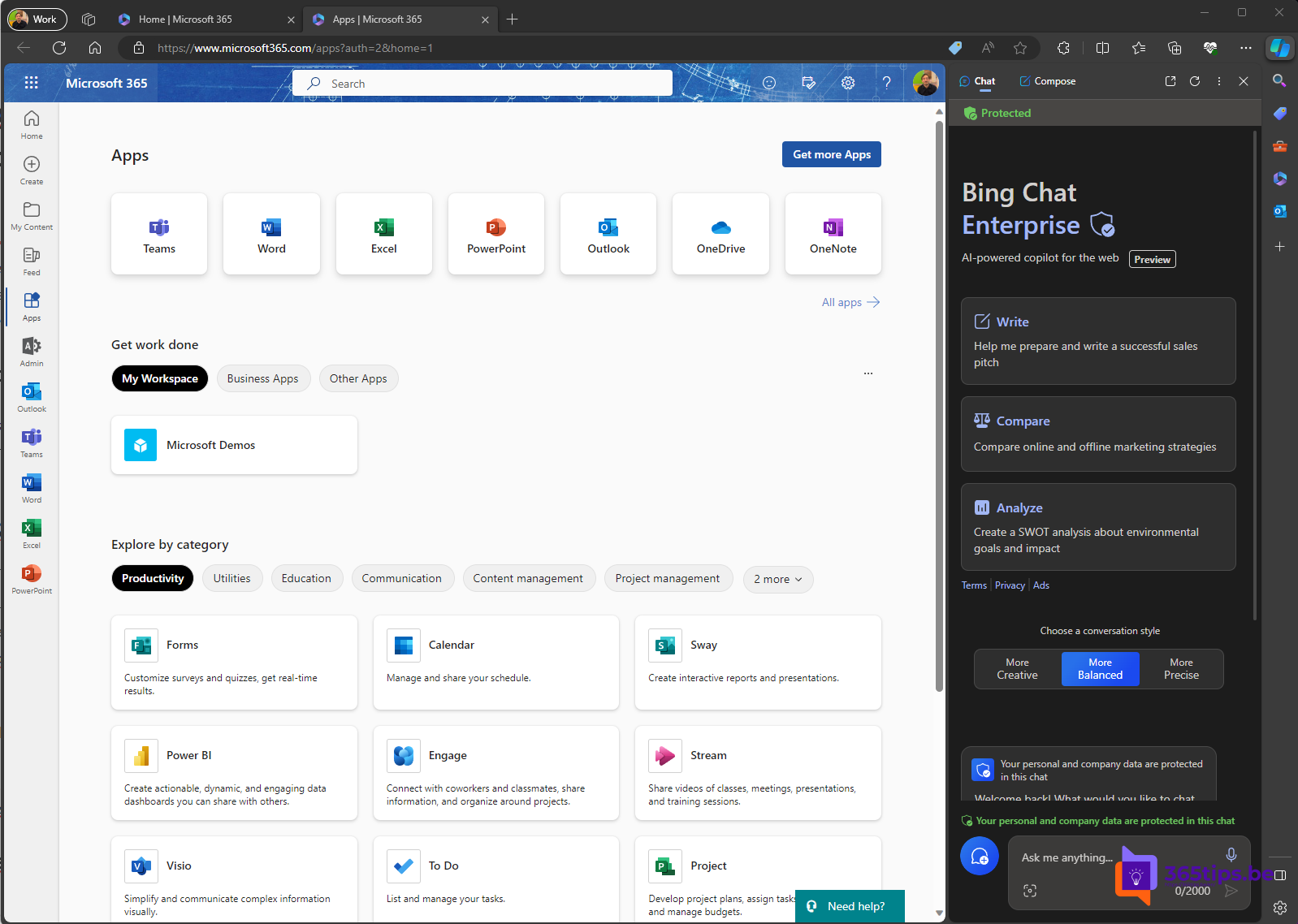
Click the Copilot icon at the top right in Edge to open the sidebar. There you can:
- Explain code on the page you're viewing, such as documentation or an example on Stack Overflow.
- Paste error messages and ask what they mean.
- Have it write sample code, such as a PowerShell script or a regular expression.
- Summarize a long technical page.

Give Copilot access to the page
- In Edge, open Settings > Copilot and sidebar (or App and notification settings > Copilot).
- Turn on Allow Microsoft to access page content, so Copilot can use the current page for its answers.
The exact names may differ. With a work account, your admin decides via policy whether these options are available.

Code completion: GitHub Copilot
Want AI to suggest whole lines of code while you type? Use GitHub Copilot in Visual Studio Code, Visual Studio or another editor.
- Install the GitHub Copilot extension in your editor.
- Sign in with your GitHub account. There's a free tier with limited usage and paid plans.
- Start typing or write a comment such as // function that validates an email address. Press Tab to accept a suggestion.
- Use the chat pane to explain code, write tests or fix errors.
What to watch out for
- Review and test all code AI suggests, especially regarding security.
- Don't paste passwords, keys or confidential source code into a public chatbot.
- Follow your organization's policy on AI in software development.
Also see enhanced security in Microsoft Edge and install the Copilot app in Windows 11.
Read also
Enhanced security mode in Microsoft Edge
Install the Copilot app in Windows 11 from the Microsoft Store
Get started with Microsoft 365 Copilot Chat (formerly Bing Chat Enterprise)
Nederlandstalige versie: Programmeren met Copilot in Edge en GitHub Copilot