Azure Storage Explorer is a free Microsoft app to manage your Azure storage from your computer. You use it to browse blobs, file shares, queues and tables, and to upload or download files just like in a regular file explorer. In this article you download the app and connect to your Azure subscription.
1. Download and install
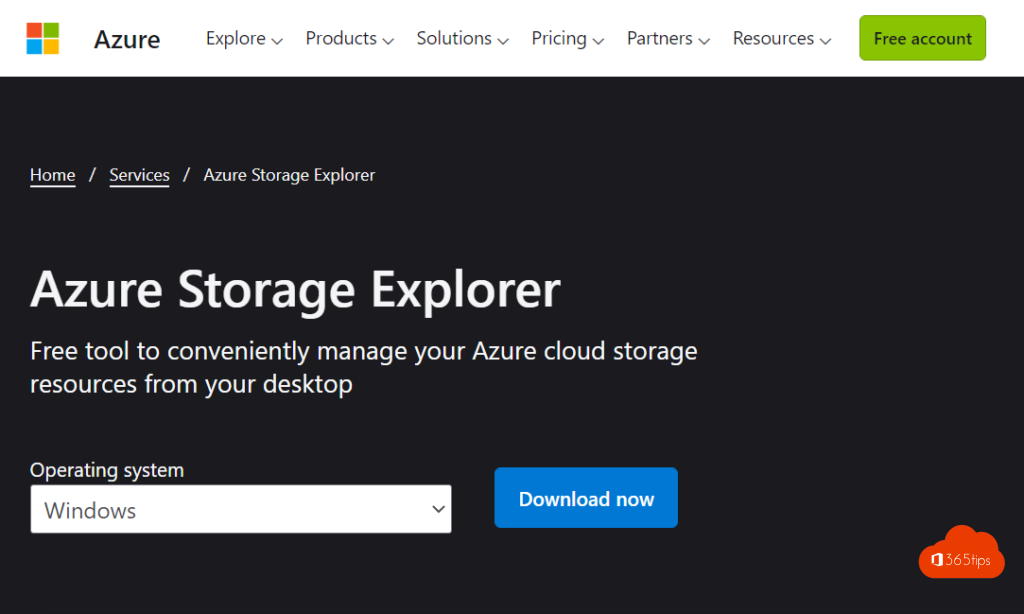
- Search the Microsoft Azure website for Azure Storage Explorer and open the product page.
- Choose your operating system (Windows, macOS or Linux) and download the latest version.
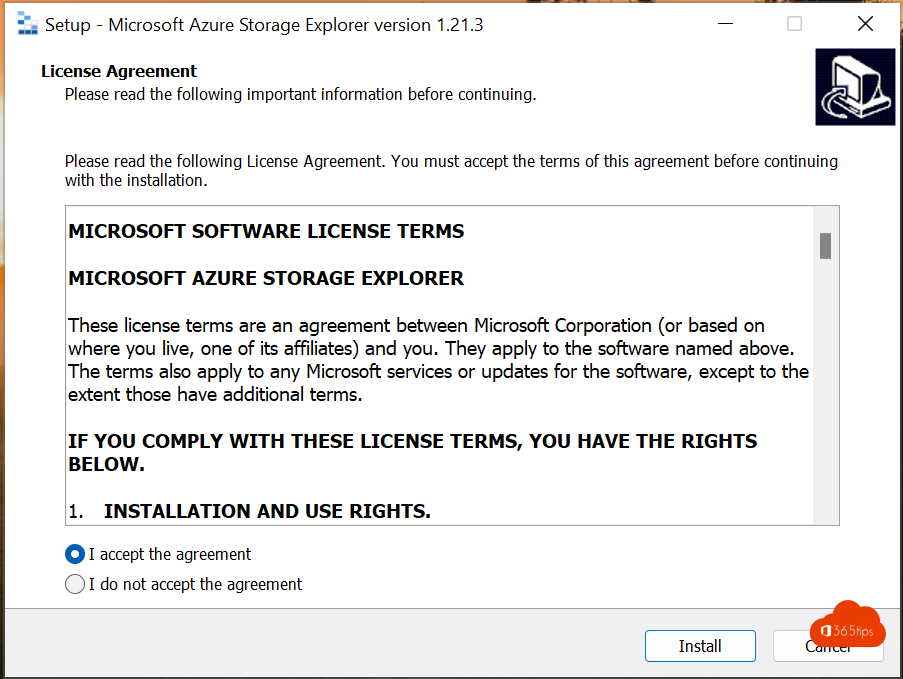
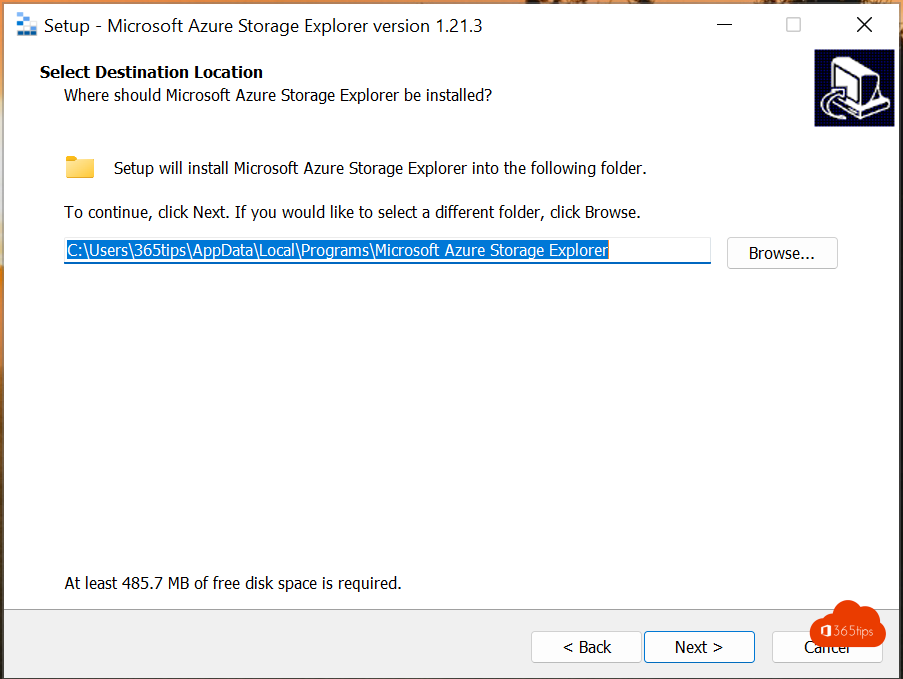
- Install the app. On Windows you can also use
winget install Microsoft.Azure.StorageExplorer.
2. Connect
- Open Storage Explorer and select the plug icon Connect.
- Choose Subscription and then Azure as the environment.
- Sign in with your work or school account.
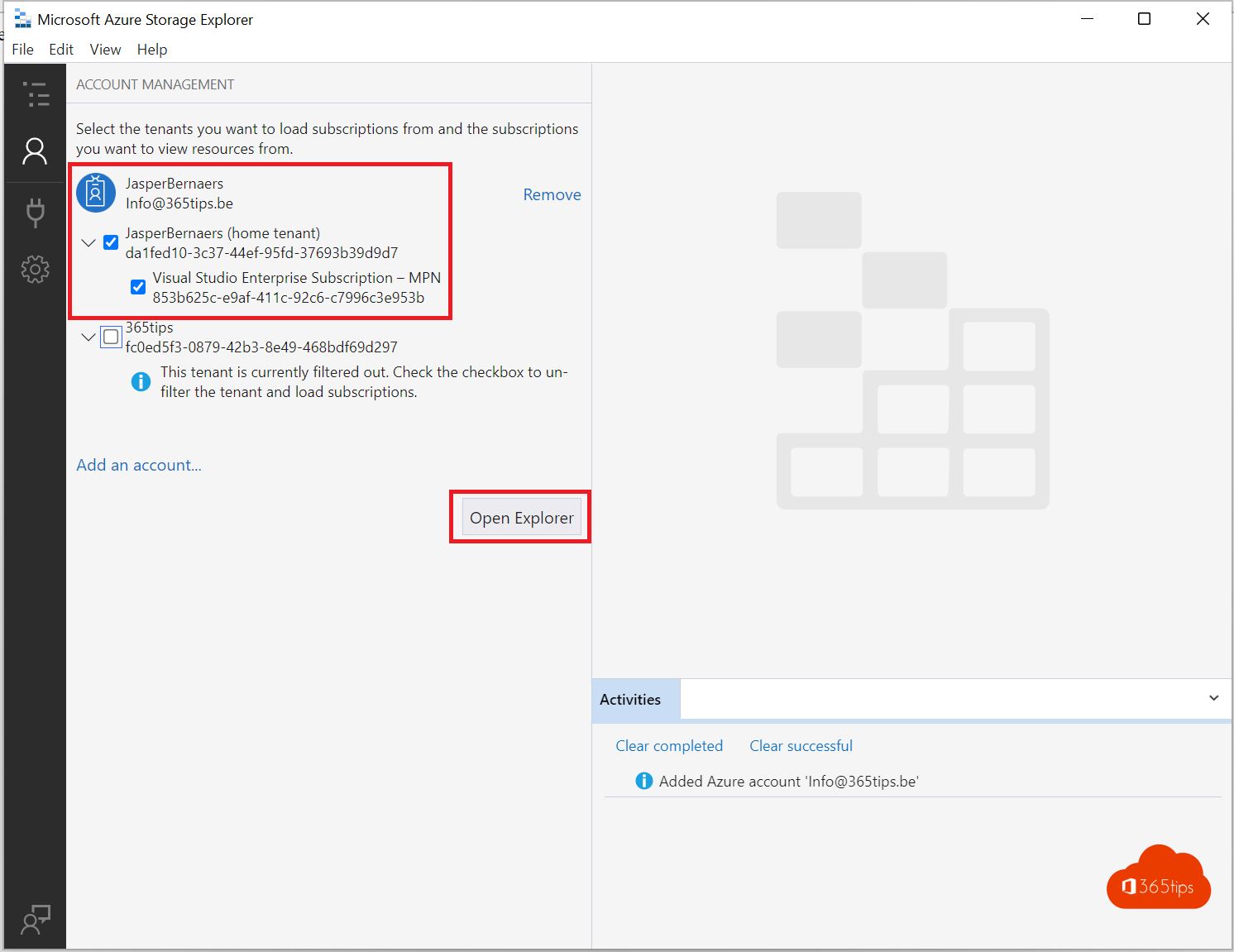
- Tick the subscriptions you want to see and select Open Explorer.
No access to the whole subscription? You can also connect to a single storage account, container or share using a SAS URL or a connection string.

3. Manage files
- Expand your subscription and go to Storage Accounts.
- Open a container or file share.
- Use Upload and Download in the toolbar, or drag files into the window.
Storage Explorer uses AzCopy behind the scenes, so even large transfers run smoothly. That way you move data exports or backups with authentication, without sharing a public link.

Tips
- For quick tasks you can also use the Storage browser in the Azure portal, without installing anything.
- Give users only the rights they need, for example the Storage Blob Data Contributor role on a single container.
- Keep Storage Explorer up to date; the app tells you when an update is available.
Also see change the owner of an Azure subscription and use winget in Windows.
Read also
Change or transfer the owner of an Azure subscription
Take control of an Azure subscription as a Global Administrator
Install and update software with winget on Windows
Nederlandstalige versie: Azure Storage Explorer downloaden en verbinden met Azure