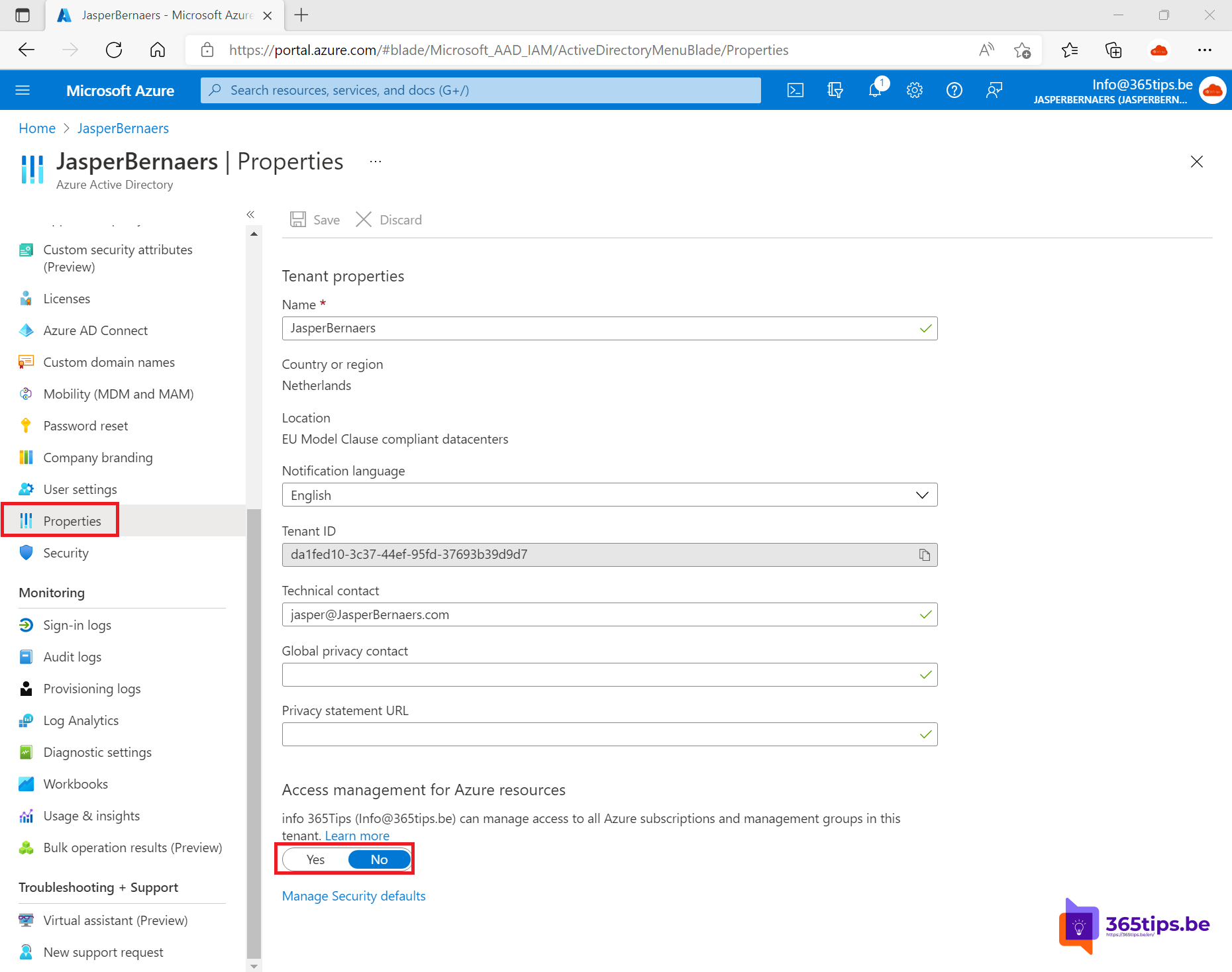
As a Global Administrator in Microsoft 365 or Entra ID you don't automatically have access to your organization's Azure subscriptions. If a consultant or a former colleague set up a subscription and is its only owner, you're locked out. Fortunately a Global Administrator can temporarily elevate their access and take back control. This article shows how, and how to close it off cleanly afterwards.
Why don't you have access?
Microsoft 365 and Entra ID on one side and Azure resources on the other each have their own roles. Global Administrator is an Entra ID role; access to an Azure subscription comes from an Azure RBAC role, such as Owner, on the subscription. They're separated on purpose. A Global Administrator can, however, temporarily give themselves access to all subscriptions in the tenant.
Step 1: Elevate your access
- Sign in to the Microsoft Entra admin center as a Global Administrator.
- Go to Entra ID > Overview > Properties.
- Under Access management for Azure resources, set the toggle to Yes.
- Select Save.
You now have the User Access Administrator role at the top level (root) of Azure, over all management groups and subscriptions. Sign out and back in to the Azure portal to see the new rights.

Step 2: Make yourself or a group owner
- In the Azure portal, go to Subscriptions. You now see all subscriptions.
- Open the subscription > Access control (IAM) > Add > Add role assignment.
- Choose Owner and assign it to a group with your regular IT admins, preferably not to an individual.
More on ownership and billing in change or transfer the owner of an Azure subscription.
Step 3: Turn the elevation off again
Set Access management for Azure resources straight back to No. User Access Administrator at root level is extremely powerful: whoever has it can make themselves owner of anything. Your own Owner assignment through the group stays in place.
Monitoring and good habits
- Elevating access is logged in the Entra ID audit logs and the Azure activity log. Set up an alert.
- Never let one person be the only owner of a subscription. Use at least two owners through a group.
- Use Privileged Identity Management to grant Owner only temporarily. See admin roles in Microsoft 365.
- Check the subscription's posture with the secure score in Defender for Cloud.
Read also
Change or transfer the owner of an Azure subscription
Assign admin roles in Microsoft 365
Secure score in Microsoft Defender for Cloud
Nederlandstalige versie: Controle nemen over een Azure-abonnement als globale beheerder