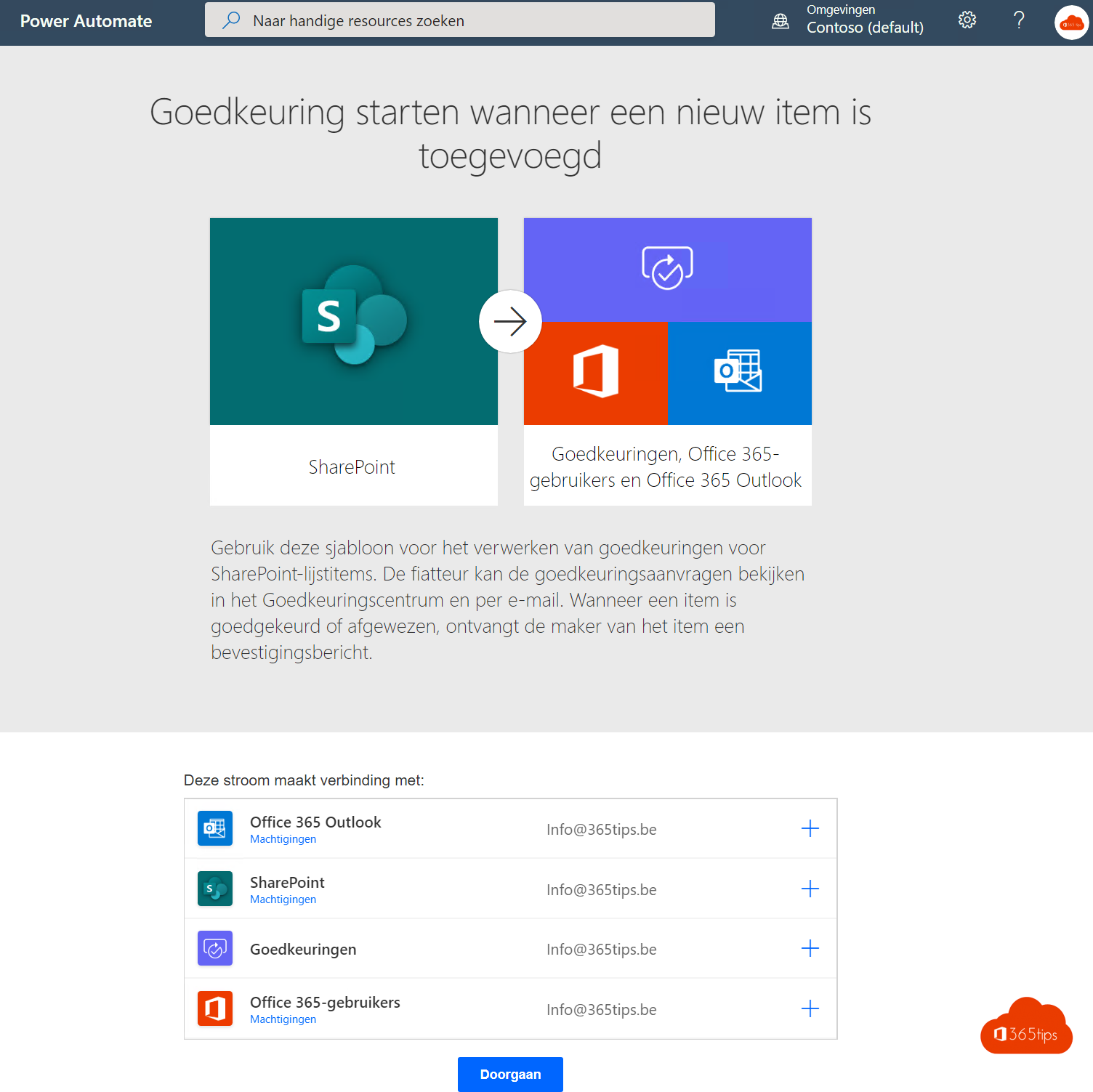
A contract, press release or procedure has to be approved before it's official. In SharePoint and Teams you request an approval for a file. The approver gets a notification and approves or rejects, and you see the status next to the file.
Request approval for one file
- Open the document library in SharePoint, or a channel's files in Teams via Open in SharePoint.
- Select the file and choose Automate > Request sign-off (or your library's approvals option).
- Choose the approver, add a message and send.
- The approver gets a notification in Teams and Outlook. The status appears in a column next to the file.
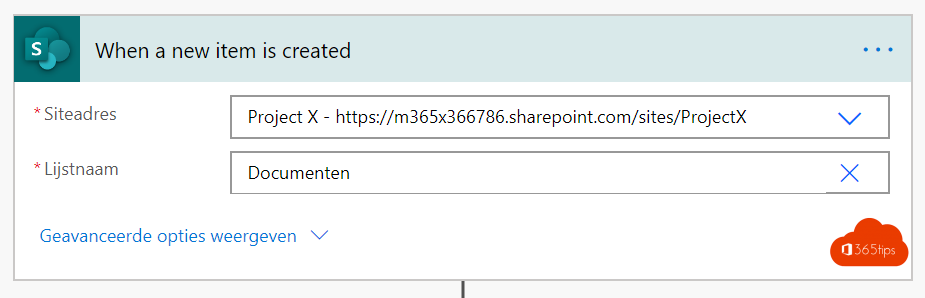
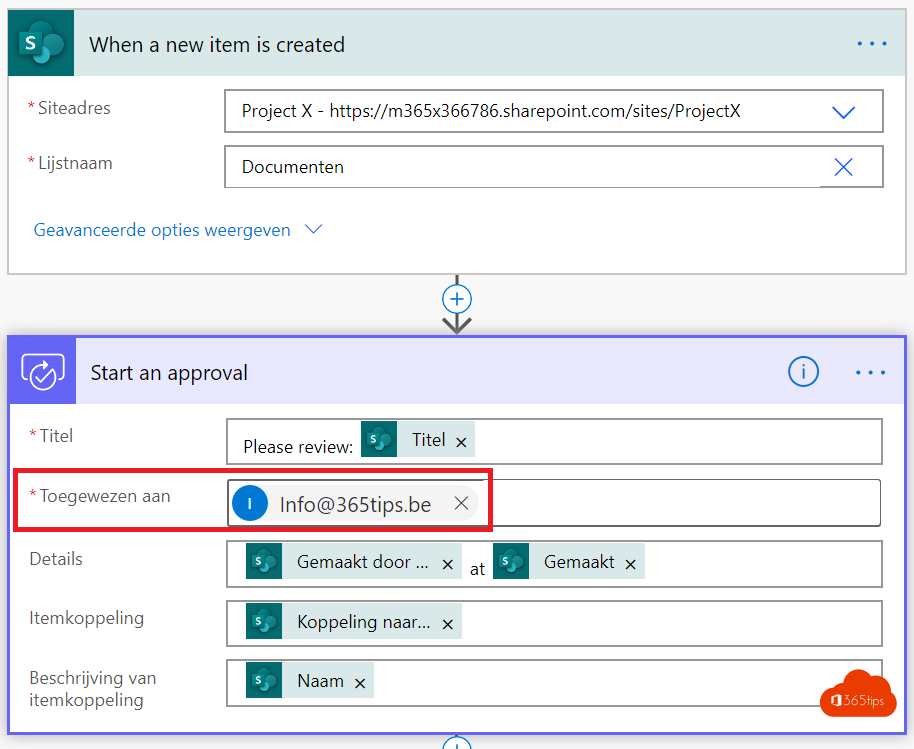
With the Approvals app in Teams
In the Approvals app in Teams you create a request, attach a file and pick one or more approvers. All requests are in one place. Read the Approvals app in Teams.
Approve everything first
Must every new or changed file be approved before others see it? Turn on content approval: Library settings > Versioning settings > Require content approval for submitted items. Only approvers and the author see files until they're approved.
Also see what is Power Automate? and version history.
Read also
Request and give approvals with the Approvals app in Teams
What is Microsoft Power Automate and how do you start?
Restore an earlier version with version history in OneDrive and SharePoint
Nederlandstalige versie: Een goedkeuring vragen voor bestanden in SharePoint of Teams