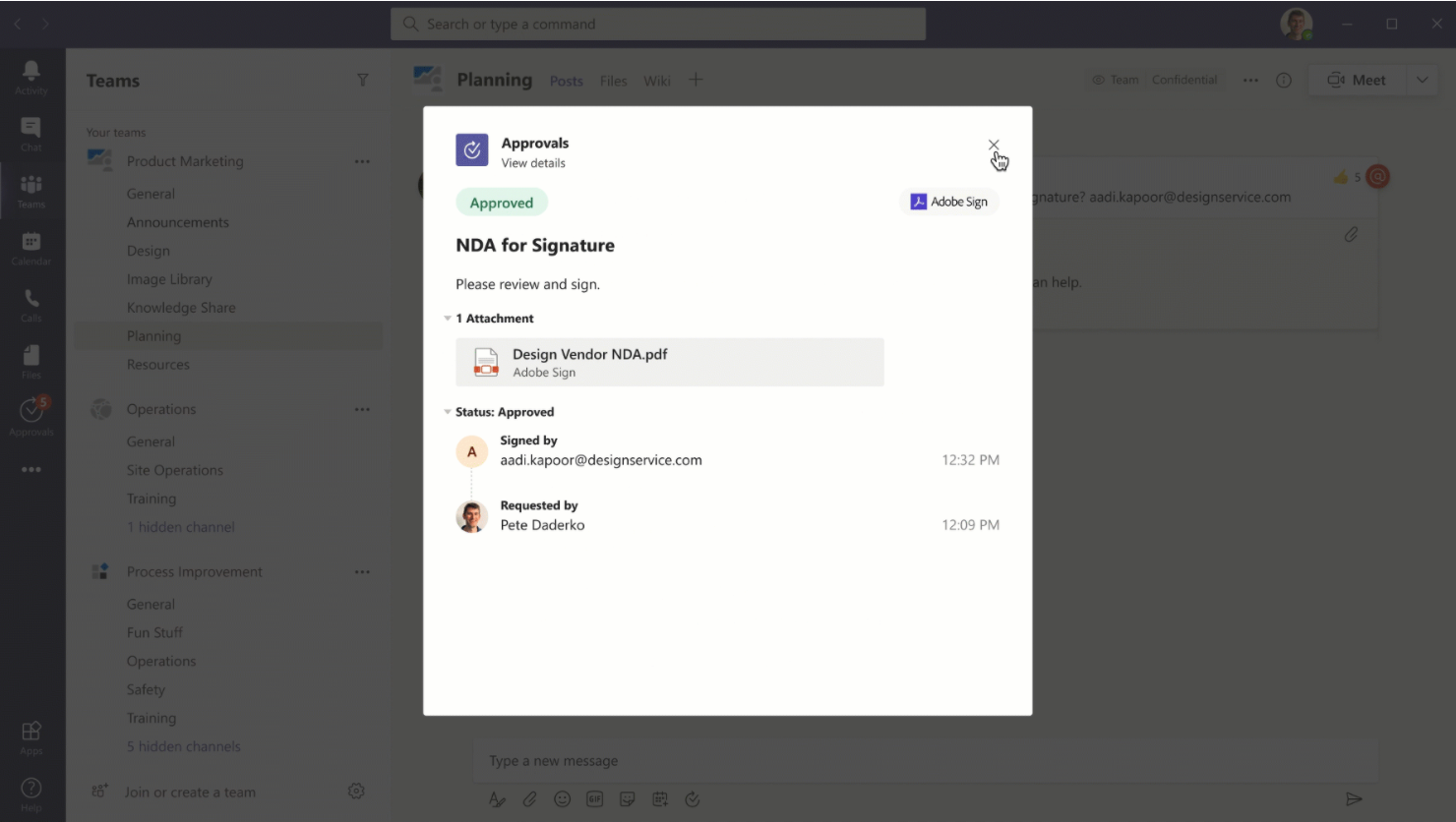
A leave request, an invoice, a quote or a new version of a document: a lot of work waits for approval. With the Approvals app in Microsoft Teams you request approvals, track them and approve them without emails going back and forth. This article shows how to create a request from a chat or the app, which kinds of approvals exist, how approvers respond and where the data is stored.
Open the Approvals app
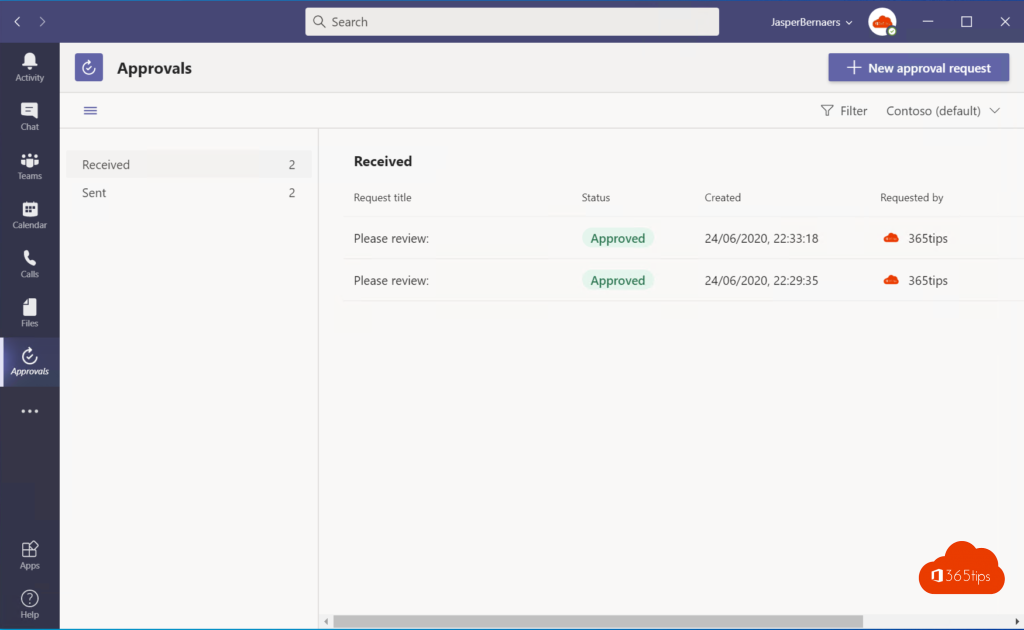
In Teams, select Apps on the left, search for Approvals and select Add. Right-click the icon and choose Pin to keep it in the left bar. The app has two lists: Received (what you need to approve) and Sent (what you requested).
Request an approval
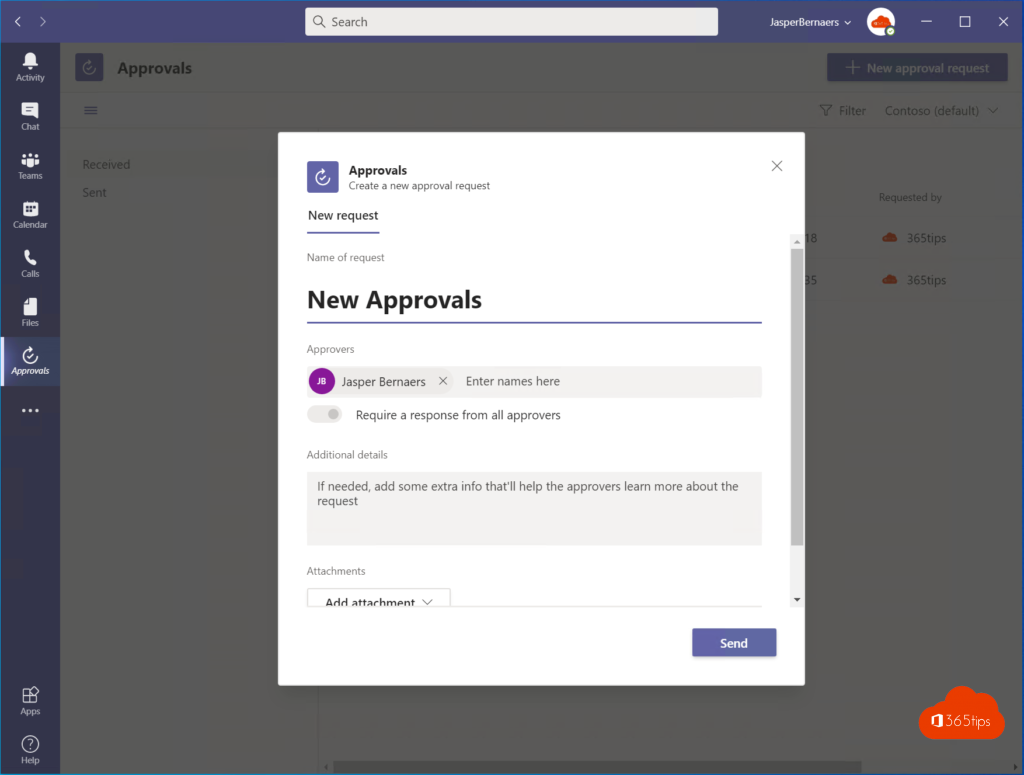
- In the app, select New approval request. From a chat or channel, select + (Actions and apps) below the message box > Approvals.
- Pick a template or Basic.
- Enter a name, choose the approvers and optionally add details and attachments, for example a file from OneDrive or SharePoint.
- Decide whether all approvers must respond, or whether one response is enough.
- Turn on Assign approvers in order if the request must go to the team lead first and to finance after that.
- Select Send.
Approve or reject
Approvers get a notification in their activity feed, and for a request made in a chat also a card in that chat. They open the request, review the attachments and select Approve or Reject, optionally with a comment. The requester sees the status immediately under Sent. A pending request can be cancelled or re-sent as a reminder.
Kinds of approvals
| Kind | Use |
|---|---|
| Basic | A simple question with approve or reject |
| Templates | Fixed forms with custom fields, for example for leave or purchases, created by an admin or team owner |
| E-signature | Have a document signed through Adobe Acrobat Sign or DocuSign (own license required) |
| Power Automate | Automatic approvals, for example for every new file in a folder |
Approvals created by Power Automate or other apps also show up in the Approvals app, so everything is in one place.
For admins
- The app is on by default. You manage it in the Teams admin center > Teams apps > Manage apps.
- Data is stored in the default Microsoft Dataverse environment. The first approval in the organization creates that environment, which can take a few minutes.
- Organization-wide templates are created in the app itself, under Manage templates, as a Global Administrator or Teams Administrator.
Read also
Set up and use Walkie Talkie in Microsoft Teams
How to schedule a chat message in Microsoft Teams
How to chat with yourself in Microsoft Teams
Nederlandstalige versie: Goedkeuringen aanvragen en geven met de app Goedkeuringen in Teams