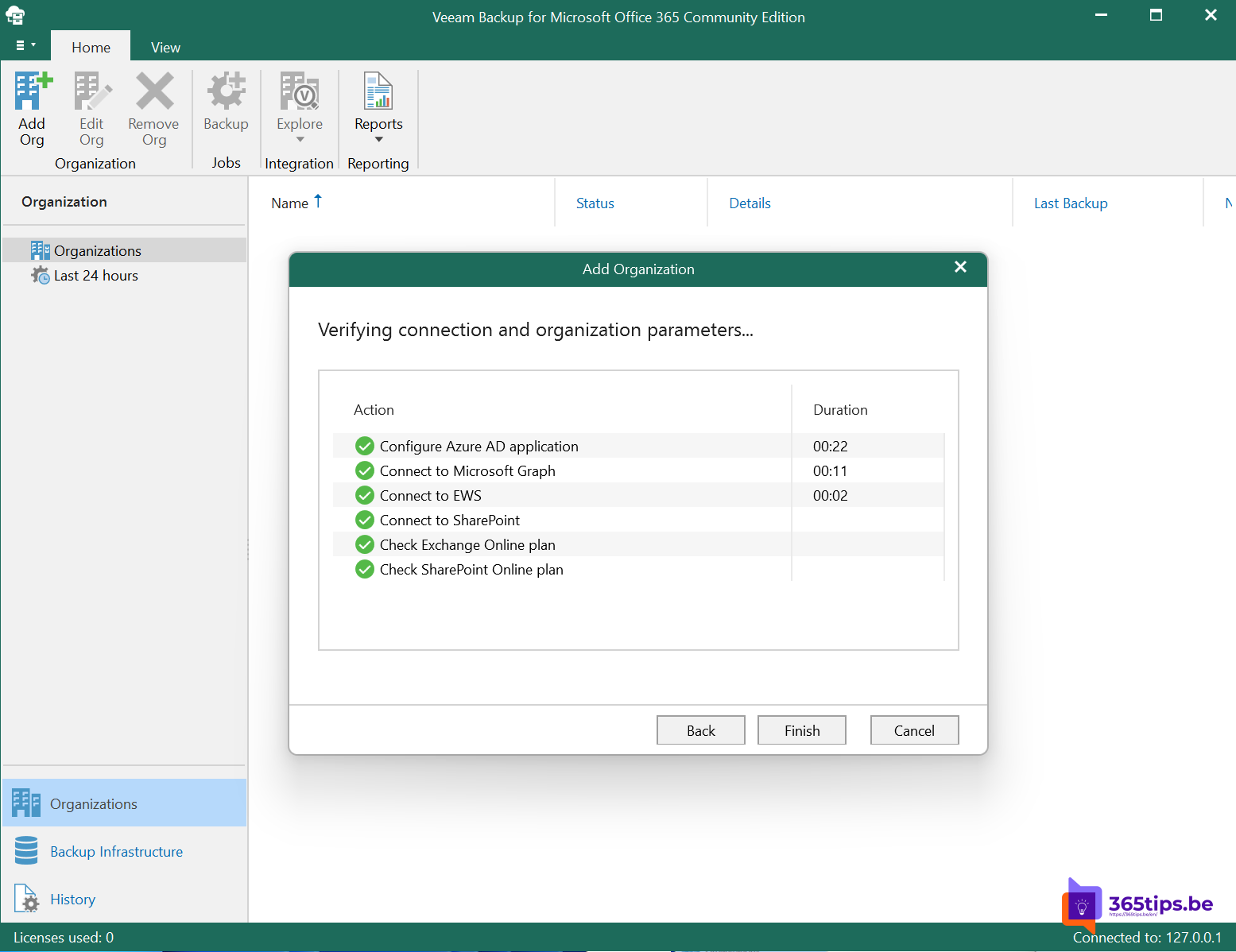
With Veeam Backup for Microsoft 365 you keep a copy of your mailboxes, OneDrive, SharePoint and Teams in a second location. That way you can also restore files that are already gone from the recycle bin, or roll back an entire mailbox after a ransomware attack. In this article you install Veeam and create a first backup job.
Prepare
- A Windows Server for the Veeam server, plus enough storage. Object storage (for example Azure Blob or S3-compatible storage) is the recommended choice for the backup repository.
- An account with enough rights to register an app in Microsoft Entra ID during the first connection, for example a Global Administrator.
- A Veeam license or a trial.
1. Install Veeam
- Download Veeam Backup for Microsoft 365 from veeam.com.
- Extract the package and run the server installation.
- The same package contains the Veeam Explorers for Exchange, SharePoint and Teams. Install them too: you use them later to restore items.

2. Add your organization
- Open the Veeam console and select Add organization.
- Choose Microsoft 365 and select the services: Exchange Online, SharePoint Online and OneDrive, and Microsoft Teams.
- Choose Modern app-only authentication.
- For a new installation, choose Register a new Microsoft Entra application automatically.
- Create a self-signed certificate with Generate and give it a name.
- Sign in with your admin account and grant consent for the app.
- Complete the wizard with Finish.


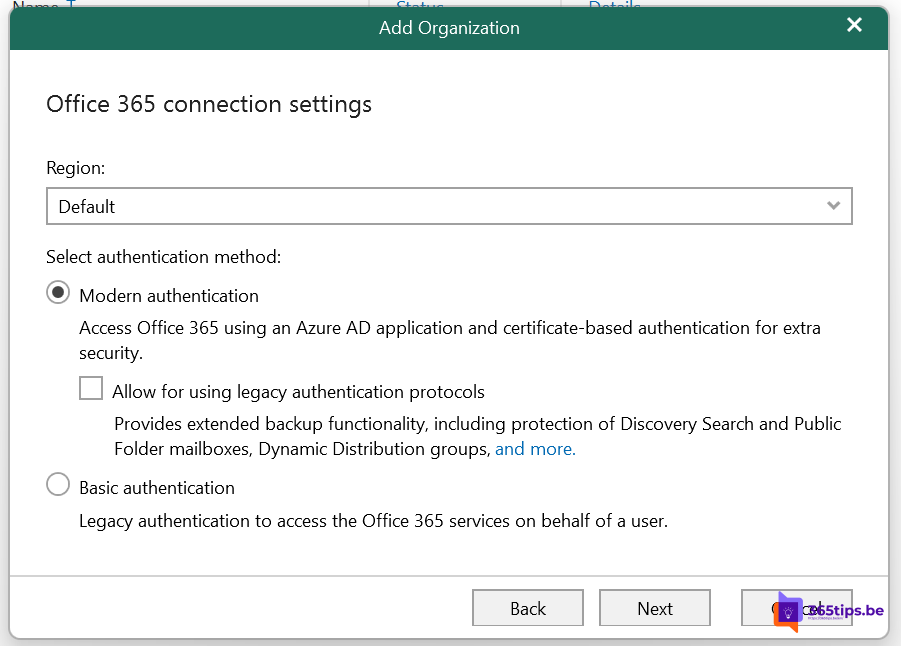
3. Create a first backup job
- Select Backup Job and name the job.
- Choose what to protect: the entire organization, or specific users, groups, sites and teams.
- Select the proxy and the repository.
- Set a schedule, for example every day at 23:00.
- Start the job and follow the first run. The first backup takes the longest.
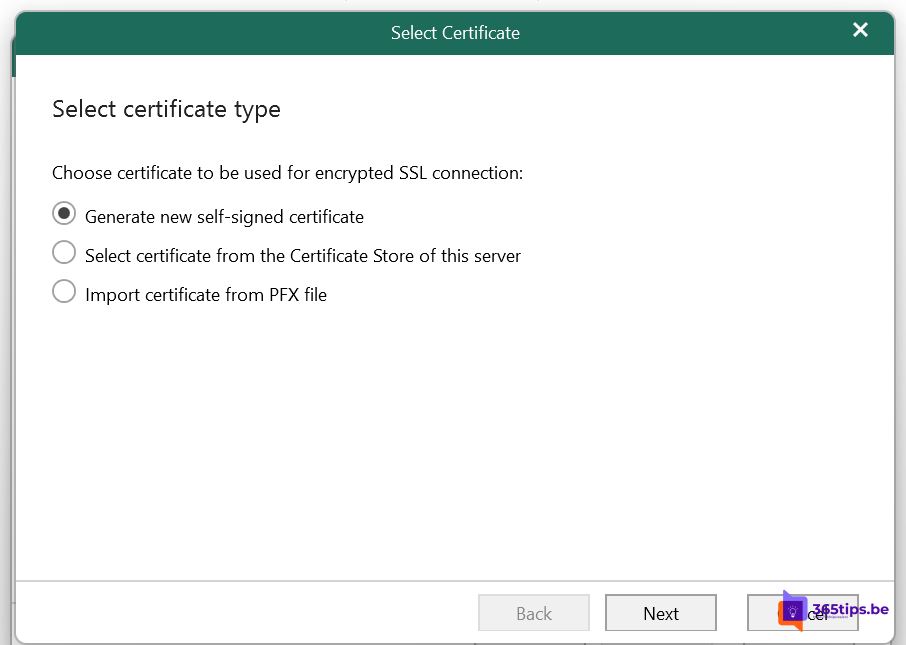
4. Restore
Right-click a backup and choose the right Veeam Explorer. You can restore a single email, a file, a site or an entire team, to the original location or somewhere else. Test this with a test user before you really need it.
Also see backup options in Microsoft 365 and restore a mailbox into another mailbox.
Read also
Backup and restore in Microsoft 365: built-in, Microsoft 365 Backup or third-party
Restore a deleted team in Microsoft Teams
Restore a deleted mailbox into another mailbox in Exchange Online
Nederlandstalige versie: Veeam Backup for Microsoft 365 installeren en een eerste back-up maken