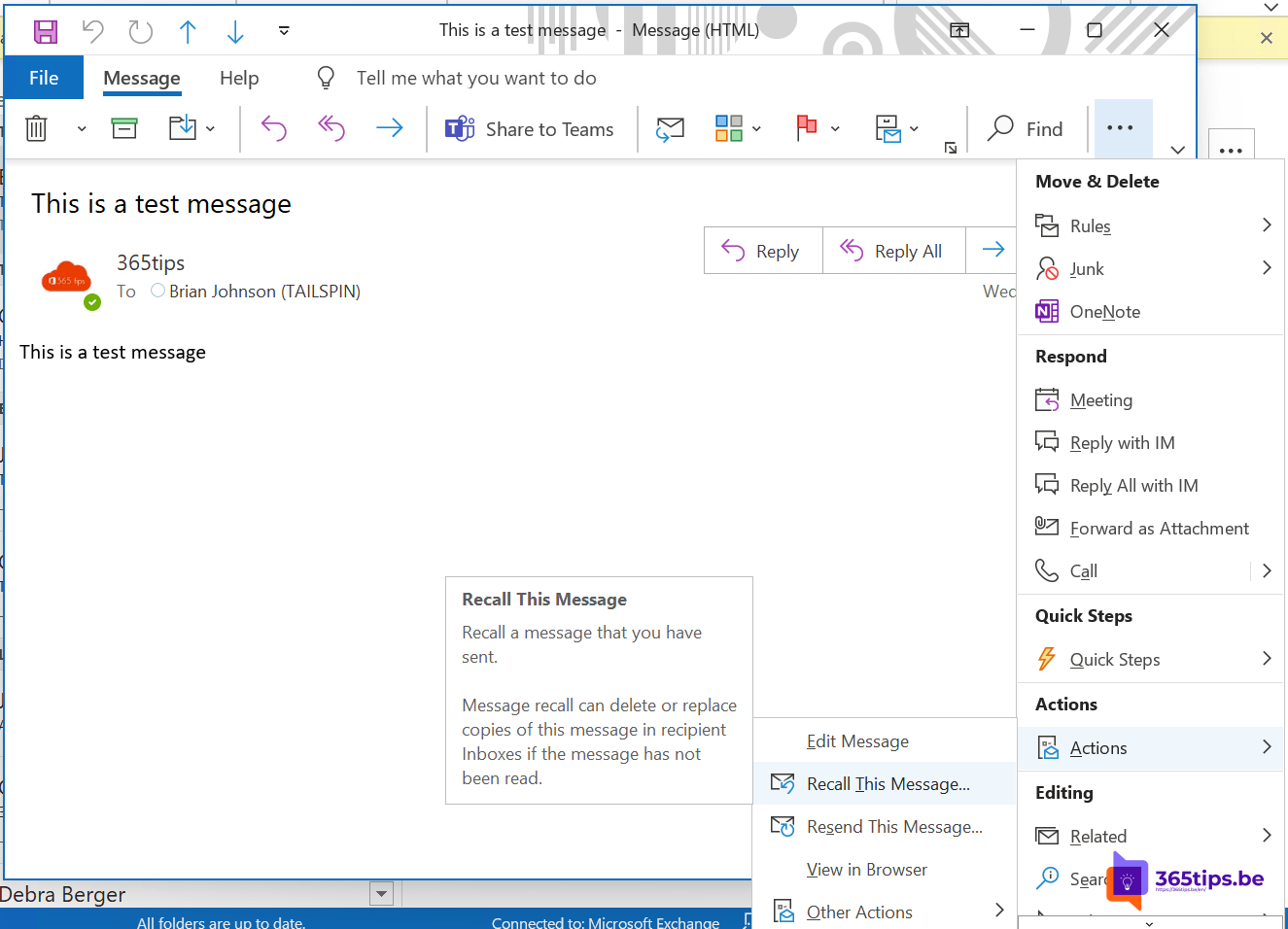
Hit Send too soon? Forgot an attachment or picked the wrong recipient? With Recall message you pull a sent email back from your colleagues' mailboxes. In classic Outlook you can also replace the message with a new version. Exchange Online now uses cloud-based recall, which works in classic Outlook, the new Outlook and Outlook on the web.
When does recall work?
- You and the recipient have a mailbox in the same Microsoft 365 organization.
- It doesn't work for recipients outside your organization. They keep the message.
- By default, recall no longer works once the recipient has read the message. Your admin can change this behavior in the Exchange admin center.
- If the recipient already forwarded the message, the forwarded copy stays.
Recall in classic Outlook
- Open the Sent Items folder.
- Double-click the message to open it.
- Choose File > Info > Message Resend and Recall > Recall This Message. In older versions you find this under Actions.
- Choose Delete unread copies of this message, or Delete unread copies and replace with a new message.
- Select OK. If you chose replace, a copy opens that you can edit and send again.


Recall in the new Outlook and Outlook on the web
- Open Sent Items and open the message.
- Select More actions (...) and choose Recall message.
- Confirm with OK.
Here you can't replace the message directly. Recall it, then send a new version. After a few minutes you get an email with the recall report, showing per recipient whether it worked.
Even better: undo send
With Undo send you get a few extra seconds to change your mind. The message only leaves after that time, so it also works for external recipients.
- In the new Outlook or Outlook on the web, open Settings (the gear).
- Go to Mail > Compose and reply.
- Under Undo send, set the slider to up to 10 seconds.
- Select Save.


After sending you see the Undo button at the bottom. Select it while it's visible.

Also see recall a message in Exchange Online and schedule or delay sending in Outlook.
Read also
Recall an email in Outlook with Exchange Online
Schedule, delay or undo sending an email in Outlook
The most useful tips for email in Microsoft Outlook
Nederlandstalige versie: Outlook: een verzonden e-mail terughalen of vervangen