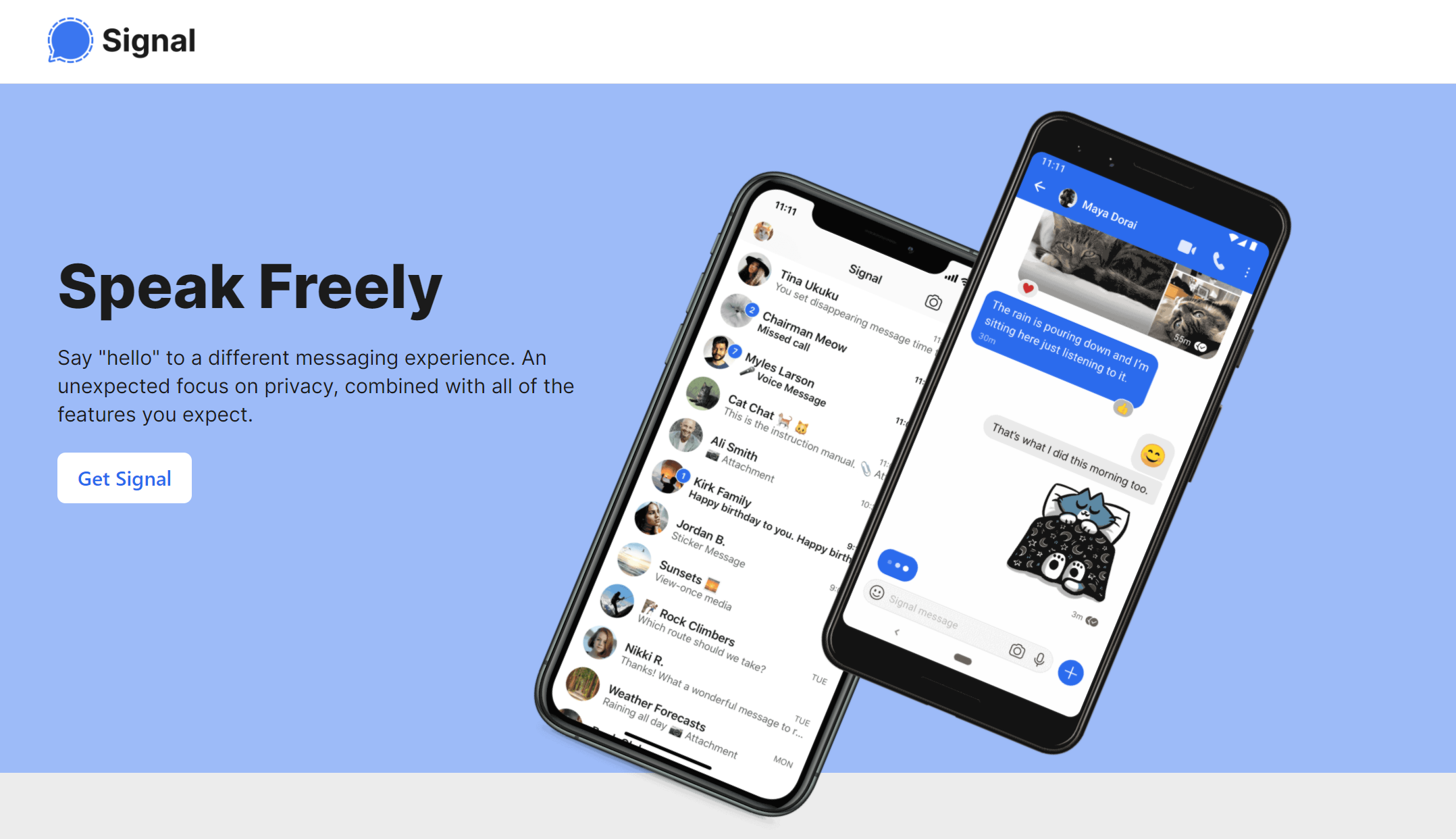
Signal is a free messaging app known for its strong privacy. All your messages and calls are end-to-end encrypted, and Signal keeps as little data about you as possible. It's developed by the non-profit Signal Foundation. Here's how to install Signal on your phone and computer, and how to set it up securely.
What is Signal?
- Messages, photos, files, voice and video calls, all end-to-end encrypted.
- Free and ad-free, funded by donations.
- Available for iPhone, Android, Windows, macOS and Linux.
Install Signal on your phone
- Download Signal from the App Store or Google Play.
- Enter your phone number and confirm with the code you get by text.
- Choose a Signal PIN. You use it to restore your profile and settings when you get a new phone.
- Set your profile name and optionally a photo.
Install Signal on your computer
The desktop app always works together with Signal on your phone, so install the phone app first.
- Download Signal Desktop from signal.org/download.
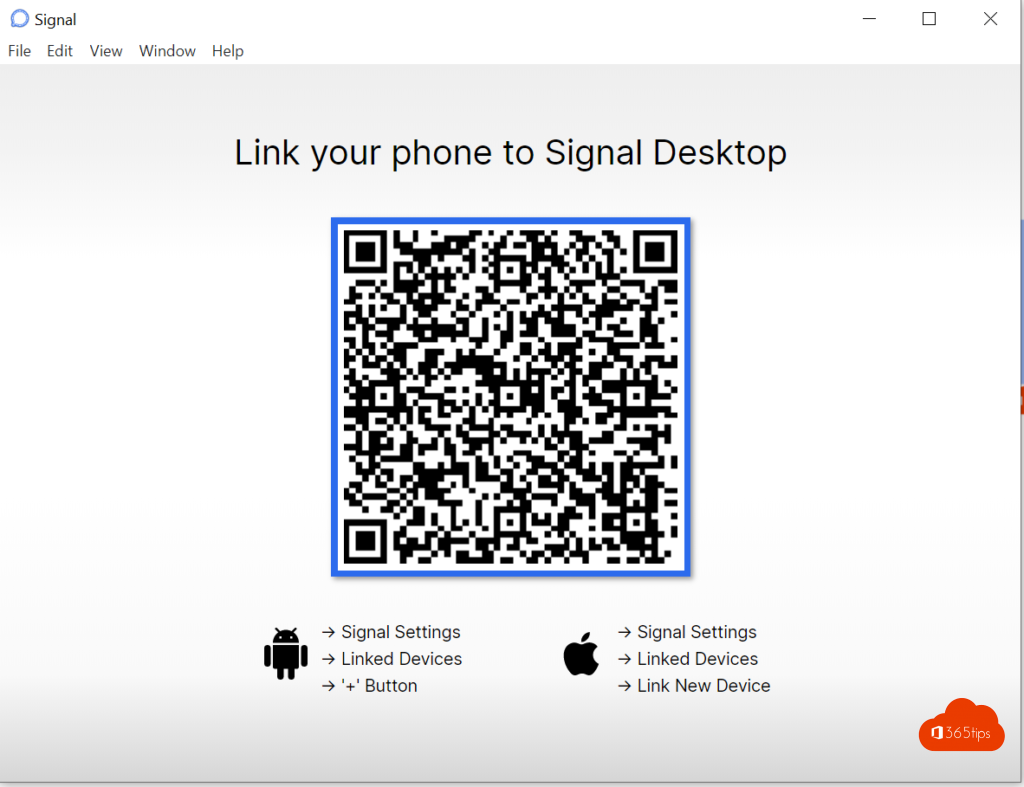
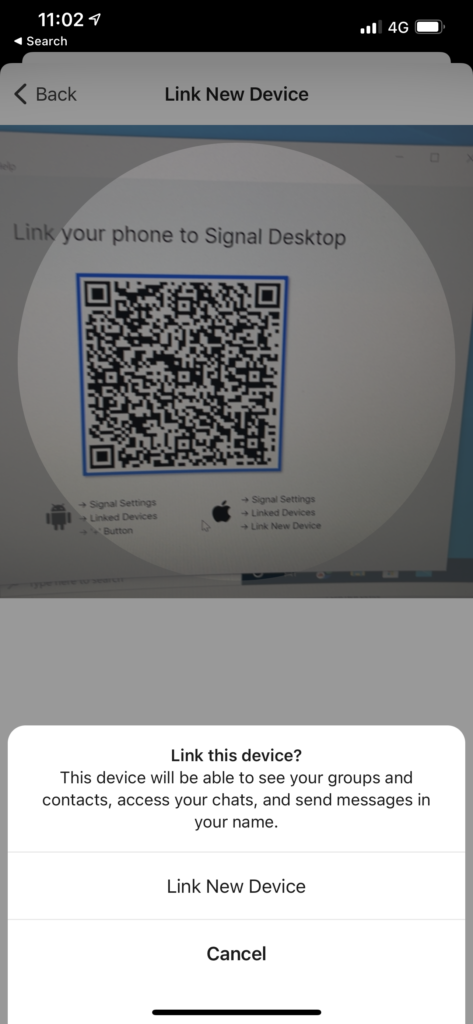
- Open the app. You'll see a QR code.
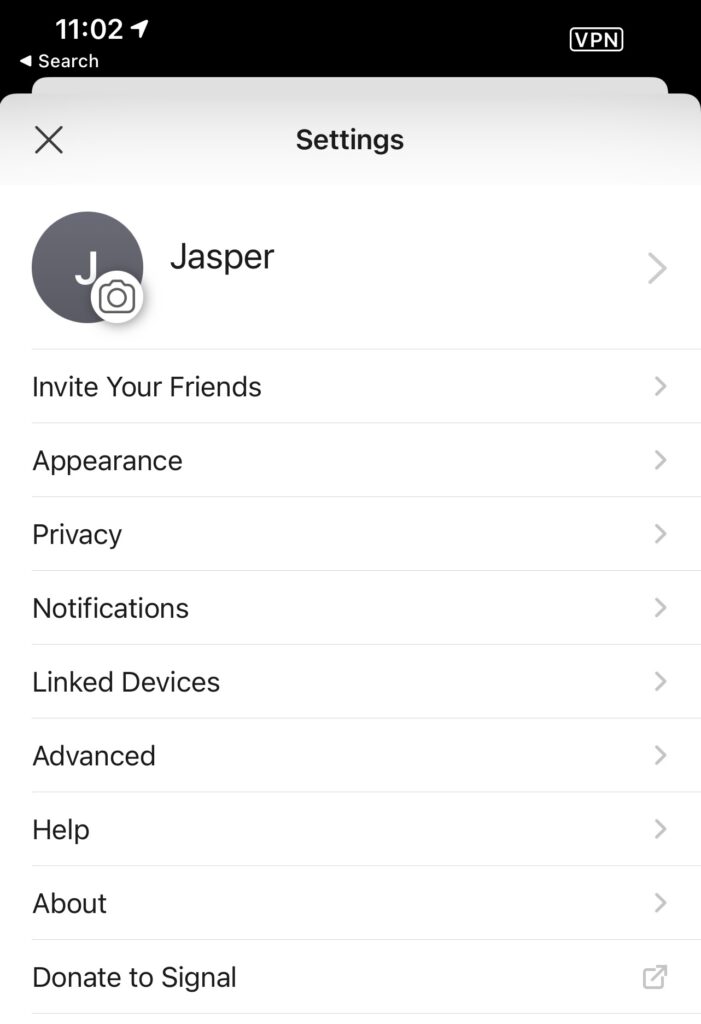
- Open Signal on your phone and go to Settings > Linked devices.
- Tap Link new device (or the plus sign) and scan the QR code.
- Give your computer a name and click Finish.

Privacy settings to know
You'll find these in Settings > Privacy. The exact names may vary by version.
- Phone number: choose who can see your number and who can find you by it. With a username you can connect without sharing your number.
- Read receipts: turn them off if you don't want others to see that you've read their message.
- Disappearing messages: have messages disappear automatically after a set time, per chat or by default for new chats.
- Screen lock: unlock Signal with Face ID, Touch ID or your passcode.
- Hide screen in app switcher: hides Signal's content when you switch between apps.
Protect your account
- Registration lock: anyone trying to register your number on another device also needs your Signal PIN. Turn it on in Settings > Account.
- PIN reminders: Signal occasionally asks for your PIN so you don't forget it.
- Safety number: verify the safety number with your contact in a chat to make sure you're talking to the right person.
Set up notifications
Go to Settings > Notifications to choose the sound and content of notifications. If you don't want the sender or text on your lock screen, choose a setting that only says there's a new message.
Also see how to install WhatsApp on your Windows PC or Mac and Microsoft Teams vs WhatsApp.
Read also
Install WhatsApp on your Windows PC or Mac (or use Teams?)
Microsoft Teams vs WhatsApp: when to use which app
Have I Been Pwned: check whether your email is in a data breach
Nederlandstalige versie: Signal installeren en veilig instellen op je gsm en computer