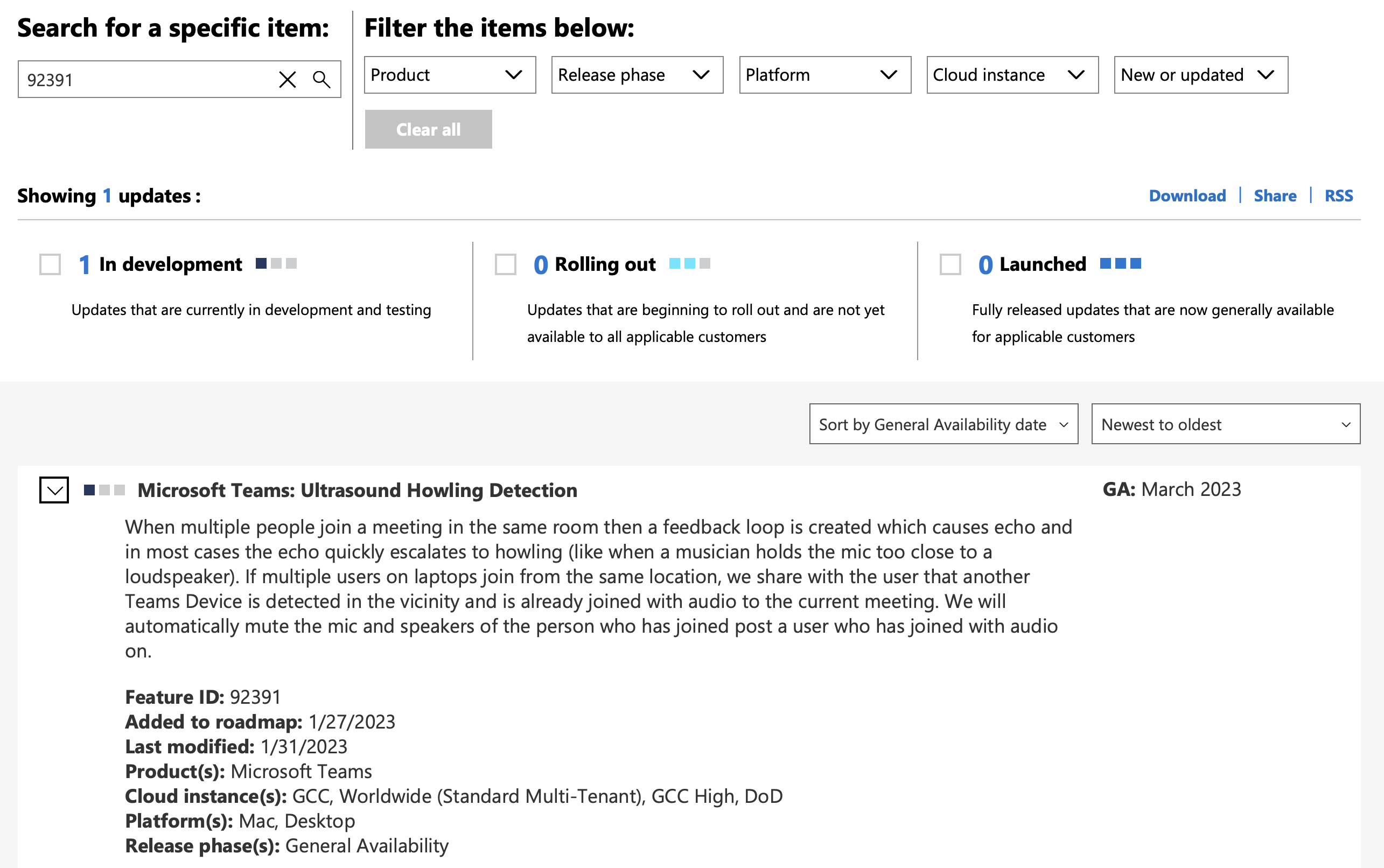
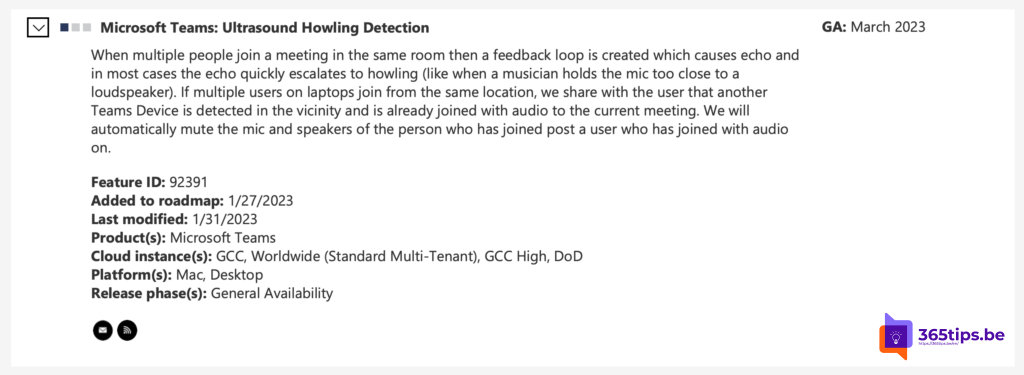
We all know it: three colleagues sit in the same meeting room and each joins a Teams meeting on their laptop. Within seconds you hear loud squealing or echo. Microsoft Teams helps prevent this with howling detection: it recognizes devices in the same room and mutes the audio. It's built into the Teams app on Windows and Mac, so you don't have to turn anything on.
Where does the squealing come from?
One laptop's speaker plays the audio. Another laptop's microphone in the same room picks it up and sends it back into the meeting. This creates a loop that quickly builds into a loud "howl", just like when a microphone is too close to a speaker.
How does Teams help?
- Teams uses ultrasonic signals you can't hear to detect that another device with audio is already in the meeting in the same room.
- If you join while a colleague next to you is already connected, Teams tells you a device is nearby.
- Teams then automatically mutes the microphone and speaker of whoever joined last, or suggests joining with audio off.
- If a feedback loop still occurs, Teams tries to recognize it and mute the sound.
What you can do yourself
- Several people in one room? Let only one device handle the audio, preferably a Teams Rooms system or a speakerphone.
- Join on your own laptop with Audio off on the pre-join screen. You can still share your screen or chat.
- Use a headset if you do need your own audio.
- Turn on noise suppression for less background noise.
Teams Rooms and proximity
Teams Rooms devices also use ultrasonic signals. Your laptop recognizes the meeting room this way and can suggest adding the room to the meeting, with your own audio off.
Also see mute everyone in a Teams meeting and Teams meeting etiquette tips.
Read also
Set up noise suppression and voice isolation in Microsoft Teams
Mute everyone in a Microsoft Teams meeting
Ten tips for good meeting etiquette in Microsoft Teams
Nederlandstalige versie: Weg met echo's in Microsoft Teams dankzij howling detection