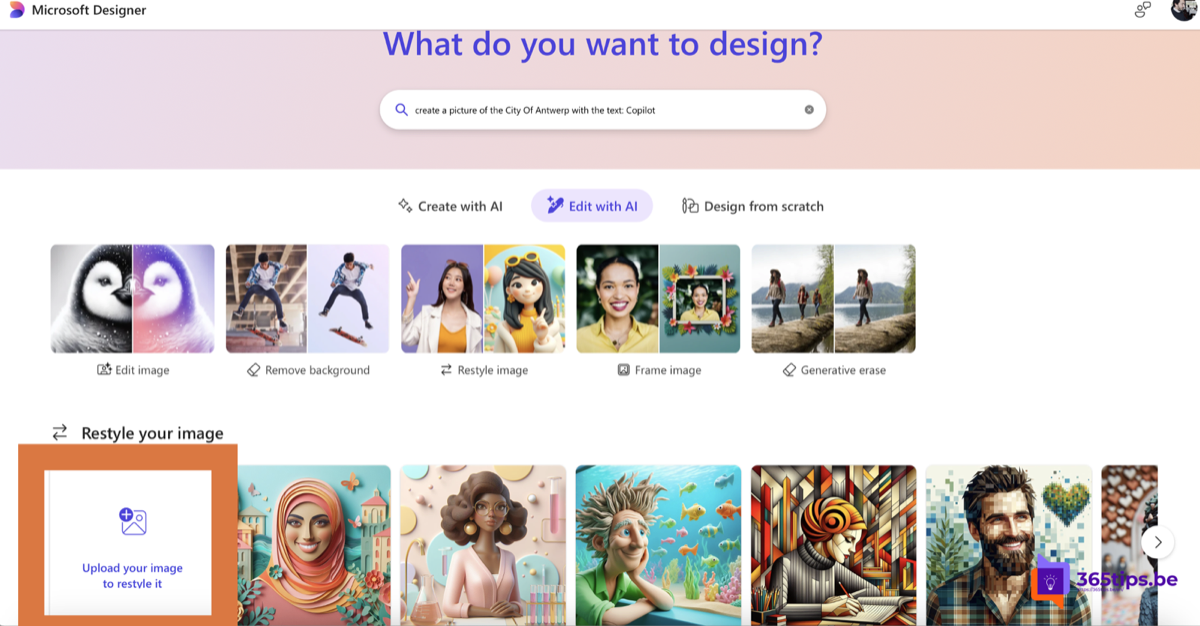
Want to brighten up a photo with a filter, text or a new background? With Microsoft Designer you do it in a few clicks, even without experience. Here's how to upload and edit a photo step by step.
Microsoft Designer is a separate, free app with a Microsoft account, not part of the classic Office suite. The editing features may change and the exact buttons may differ.
Step 1: open Designer
Go to designer.microsoft.com or open the Designer app, and sign in with your Microsoft account.
Step 2: upload your photo
On the home page, choose Edit image or a similar option, and upload your photo. You can also create a blank design and add your photo via Upload.
Step 3: edit
- Filters and adjustments: brightness, contrast, color or a filter for a vintage or modern look.
- Remove or blur the background: make your subject stand out with one click.
- Generative erase: brush over a distracting element and AI fills the spot.
- Restyle: give your photo a different style, such as a drawing or 3D.
- Add text: a title or caption, in a font of your choice.
- Frames or stickers for a playful touch.
Step 4: save and share
Click Download to save your photo as PNG, JPG or PDF, or share it directly.
Tips
- Start with a sharp photo with good light; AI can't save everything.
- Don't upload photos of others without their consent.
- Editing photos on a Windows PC? The Photos app and Paint also have features such as background removal.
Also see getting started with Microsoft Designer and Paint keyboard shortcuts.
Read also
Get started with Microsoft Designer: create designs with AI
Create images from words in Microsoft Copilot and Designer
The most useful keyboard shortcuts for Paint in Windows
Nederlandstalige versie: Foto's uploaden en bewerken met Microsoft Designer