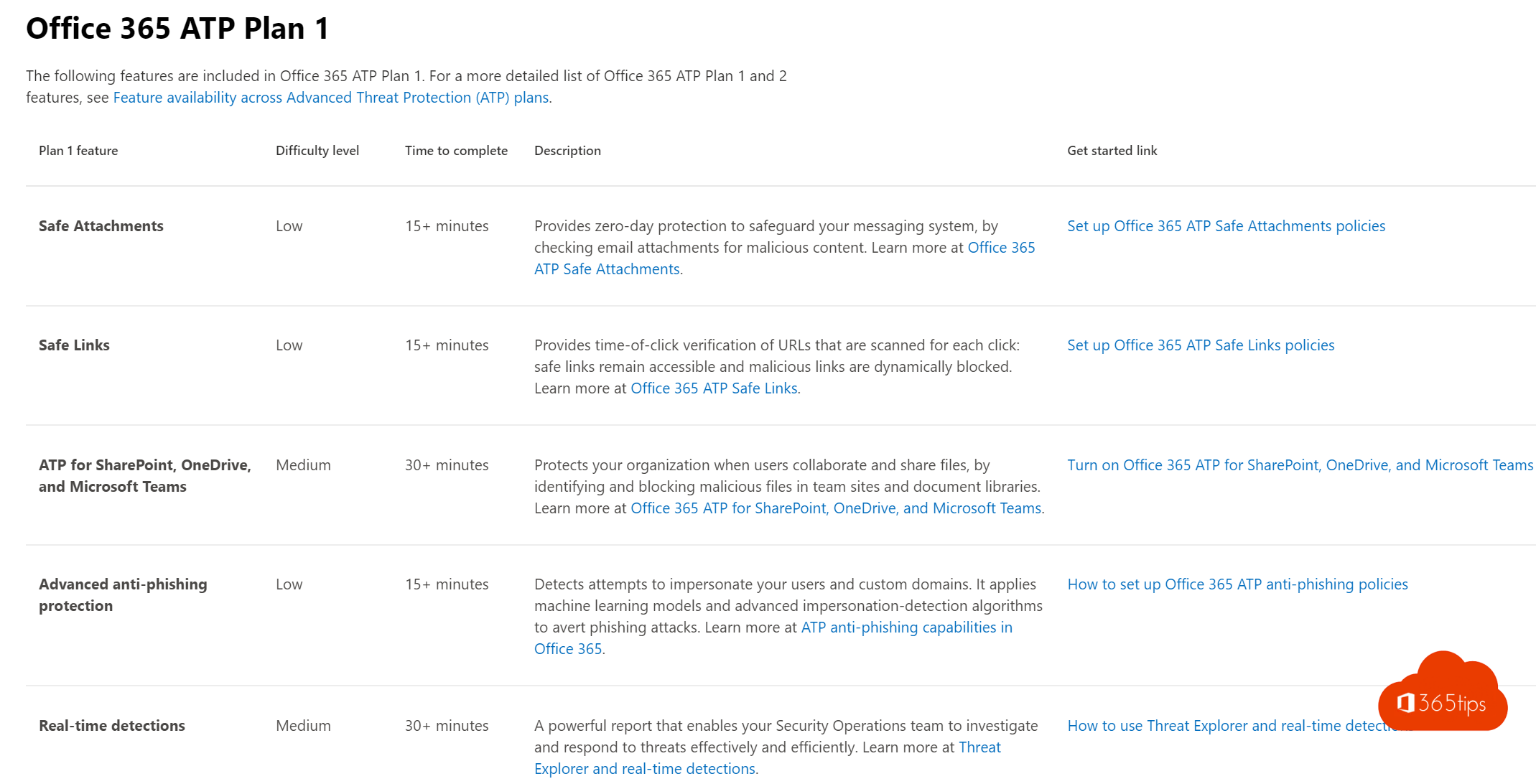
Office 365 ATP is now called Microsoft Defender for Office 365. It protects your organization against phishing, malicious attachments and dangerous links in email, Teams and other collaboration tools. The old ATP advisor no longer exists: today you use preset security policies and the configuration analyzer in the Microsoft Defender portal instead of the advisor and the ORCA report.
What's in Defender for Office 365?
- Safe Attachments: attachments are opened in a safe environment first.
- Safe Links: links are checked at the moment you click them.
- Advanced protection against phishing and impersonation.
- In Plan 2: Threat Explorer, automated investigation and attack simulation training.
Get started quickly with preset policies
- Go to the Microsoft Defender portal (security.microsoft.com).
- Open Email & collaboration > Policies & rules > Threat policies.
- Choose Preset security policies.
- Turn on Standard protection for most users and Strict protection for sensitive accounts, such as admins and executives.
Microsoft keeps those settings up to date with the recommended values.
Check your settings with the configuration analyzer
Using your own policies? Open Configuration analyzer on the same page. It compares your settings with the recommended Standard and Strict values, shows where you differ and lets you apply recommendations right away. For most admins it replaces the old ORCA report.
Exact menu names may differ slightly.
Permissions
You need a role such as Security Administrator to change policies. People who only need to look are better off with Security Reader.
Also see preset security policies in Defender for Office 365 and attack simulation training.
Read also
The recommended configuration for Microsoft Defender for Office 365
Run a phishing simulation with Attack simulation training
Run your own Microsoft 365 security assessment in 5 steps
Nederlandstalige versie: Defender voor Office 365 instellen met vooraf ingesteld beleid en de configuratieanalyse