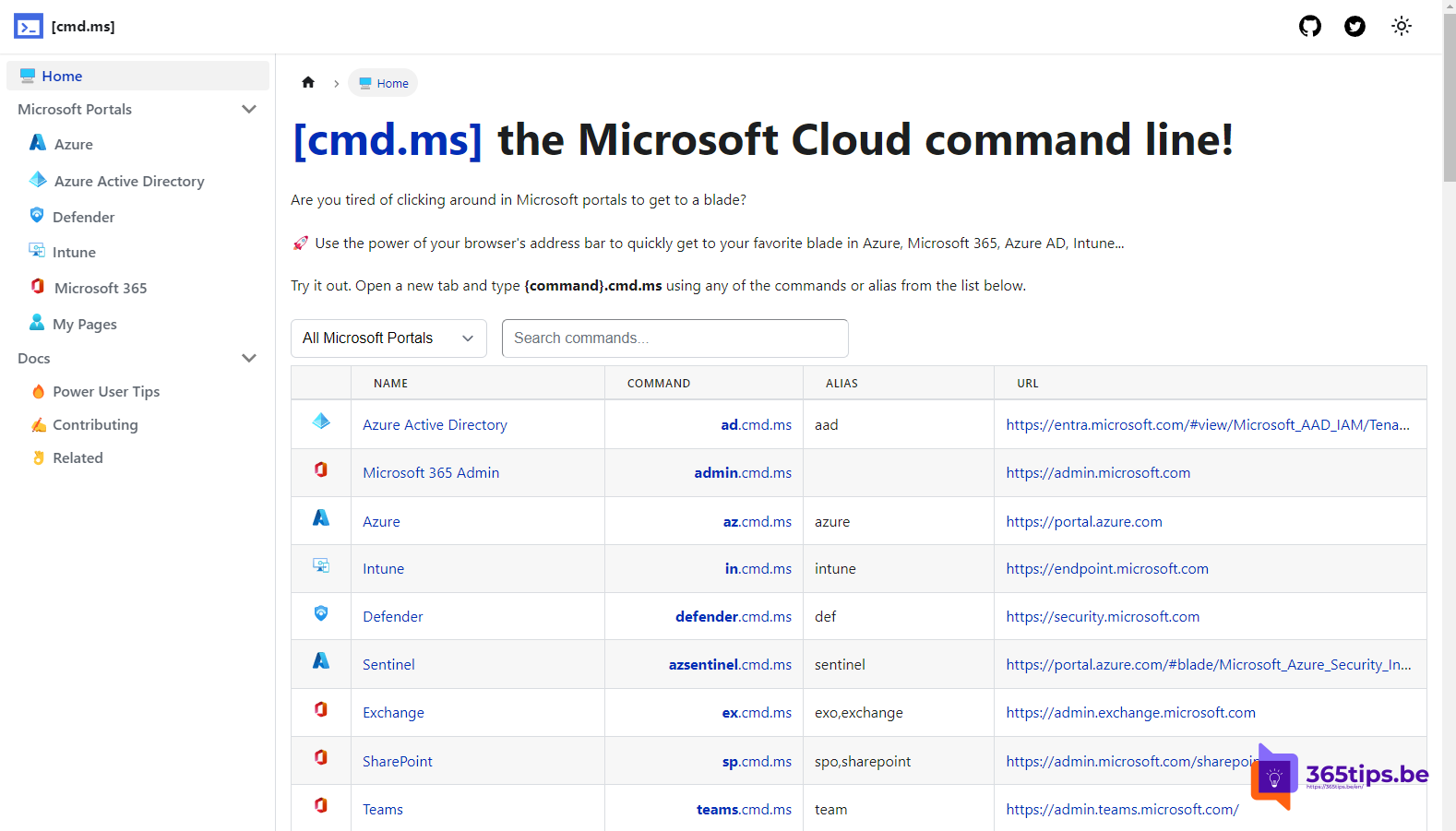
Microsoft has dozens of admin portals, each with its own address. If you switch often between Entra ID, Intune, Defender and Exchange, you lose time searching. cmd.ms is a free community tool by Merill Fernando (Microsoft) that takes you straight to the right portal with short commands.
How does it work?
You type a short command before .cmd.ms in the address bar. A few examples:
| Type | You land in |
|---|---|
| admin.cmd.ms | Microsoft 365 admin center |
| entra.cmd.ms | Microsoft Entra admin center |
| intune.cmd.ms | Microsoft Intune admin center |
| ca.cmd.ms | Conditional Access |
| users.cmd.ms | Users in Entra ID |
The full list is on the website itself. Commands can change; when in doubt, check cmd.ms. Keep in mind it's not an official Microsoft product, so always check that you end up on the right Microsoft domain.
Use the website
Go to cmd.ms. You get a searchable list of portals and their commands: from Azure and Entra ID through Intune, Defender and Purview to Exchange, SharePoint, Teams and Power Platform. Deeper pages such as sign-in logs, app registrations or devices are included too.

The sidebar lets you browse by category, such as Azure, Entra, Defender, Intune and Microsoft 365.

The browser extension
With the extension for Edge or Chrome you don't have to type .cmd.ms every time:
- Install the cmd.ms extension from your browser's add-on store.
- Open a new tab.
- Type c and press Space or Tab.
- Type the command, for example users, and press Enter.
Also see all Microsoft 365 admin portals and their URLs and a tour of the Microsoft 365 admin center.
Read also
All Microsoft 365 admin portals in one list: the right URLs in 2026
A quick guide to the Microsoft 365 admin center for admins
A tour of the Microsoft Teams admin center
Nederlandstalige versie: cmd.ms: met korte commando's naar elk Microsoft-beheerportaal