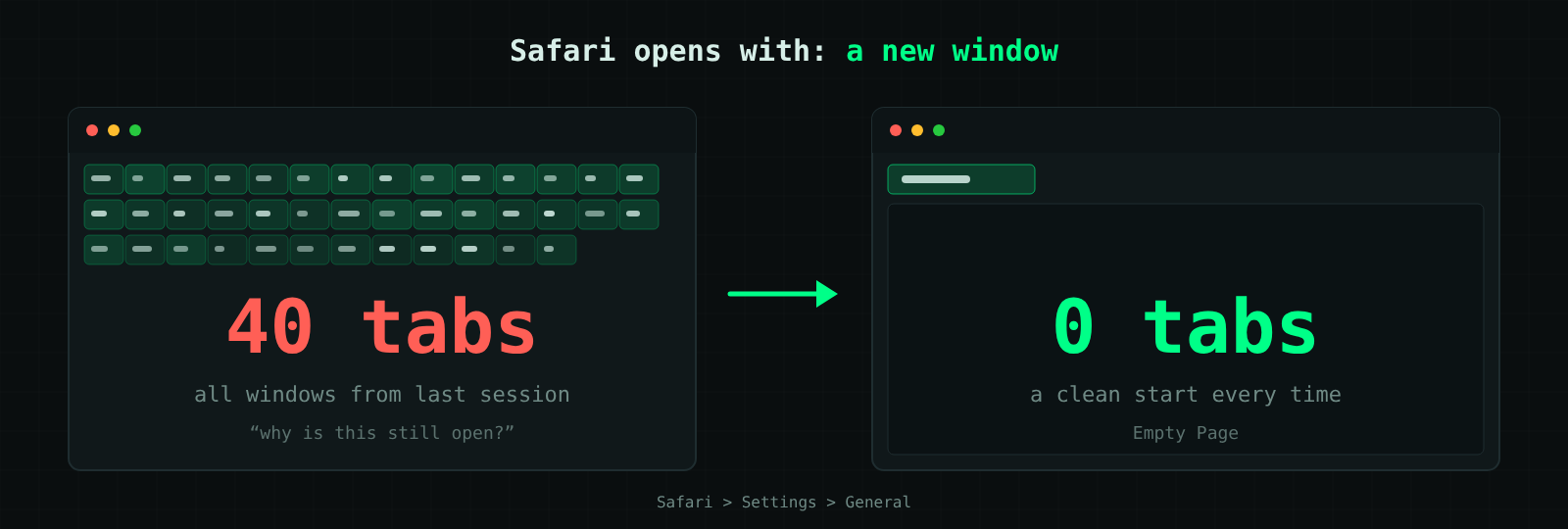
Safari has a good memory. Quit it with a pile of tabs open and the next time you launch it, there they all are again, including the page you meant to close last week. That is handy for one person working on one project. It is a nuisance on a shared Mac, a demo machine, a kiosk, or a laptop that has quietly collected 40 tabs since Monday.
This post covers two goals: closing everything you have open right now, and making Safari start clean (or on exactly the page you choose) every time you launch it. Both take a minute, and a section near the end shows admins what they can push to company Macs.
What do you want to do?
| What you want | What to do |
|---|---|
| Close every tab right now | Control-click one tab, choose Close Other Tabs, then close that last tab with Command-W |
| Start each launch with a fresh window | Safari > Settings > General > Safari opens with: pick the new window option |
| Stop macOS reopening windows in every app | System Settings > Desktop & Dock > Windows: turn on Close windows when quitting an application |
| Skip the restore once, without changing a setting | Hold Shift while you open Safari |
| Set the new window and new tab behavior on company Macs | Push it with a configuration profile (see the admin section) |
The next sections explain each option, including the one catch Apple documents: some of the Safari opens with choices only appear when the Desktop & Dock setting above is on.
Close all your tabs right now
Control-click the one tab you want to keep and choose Close Other Tabs; every other tab in that window closes at once. Apple's Safari guide gives this method, and its shortcut page adds a mouse alternative: Option-click the Close button on the tab you want to leave open.
To end up with nothing, close that last tab as well. Command-W closes the active tab, and closing the last tab in a window finishes the job for that window. If you have several windows, repeat the step in each one.
Two related commands are worth knowing:
- Close Tabs to the Right and Close Tabs to the Left appear in the same Control-click menu and trim one side of the tab bar.
- Shift-Command-T reopens the last tab or window you closed, so an accidental clean-up is not final.
Closing tabs by hand only fixes today. If the same tabs return the next time you open Safari, the fix is in the next section.
Stop old tabs from reopening when Safari launches
The setting that decides this lives in Safari itself, and it takes four steps.
- Open Safari, then choose Safari > Settings and click General.
- Open the Safari opens with menu. Apple describes four ways a session can start: with a new window, a new private window, all the windows from your last session, or all the non-private windows from your last session.
- Choose the new window option for a clean start every time. Choose the new private window option if every session should begin in private browsing, which suits a shared Mac.
- Quit Safari and open it again to test.
The two "last session" choices are the ones that bring your tabs back, so avoid them on a Mac you want to keep tidy.
One catch comes straight from Apple: some of the Safari opens with options are shown only when Close windows when quitting an application is selected in the Desktop & Dock settings. If a choice you expect is missing from the menu, or Safari still restores windows after you change it, jump to the macOS side below. Also note that when you pick the new window option, the New windows open with menu decides what that window contains.
Decide what a new window or tab shows
For the cleanest launch, set both New windows open with and New tabs open with to Empty Page. These two menus sit in the same General pane, and they matter because the new window option from the previous section opens whatever you pick here. Apple's options are:
| Option | What opens | Offered for |
|---|---|---|
| Start Page | Your favorites, a Privacy Report summary, your Reading List and pages open on other Apple devices | New windows, new tabs |
| Homepage | The page you enter in the Homepage field below the menus | New windows, new tabs |
| Empty Page | An empty Safari window with no web page address or content | New windows, new tabs |
| Same Page | The web page you most recently viewed | New windows, new tabs |
| Tabs for Favorites | All the bookmarks in Favorites, as a set of tabs | New windows only |
| Choose tabs folder | The bookmarks in a bookmarks folder you choose | New windows only |
Two of these quietly recreate the problem. Tabs for Favorites and Choose tabs folder open a whole set of tabs every time, and Same Page brings back the last page you viewed. If your goal is zero tabs on launch, stick to Empty Page, or to a single Homepage you control.
The macOS side: stop windows reopening in every app
Apple's own advice for "every time you open Safari" is a system setting, not a Safari one. On macOS Ventura and later, including macOS 27 Golden Gate, turn it on like this:
- Choose Apple menu > System Settings, then click Desktop & Dock in the sidebar.
- Scroll down to the Windows section.
- Turn on Close windows when quitting an application.
Apple's description is short: app windows close when you quit the app, and they do not reopen automatically the next time you open it. The setting covers every app, not just Safari, and Apple notes that some of the Safari opens with options appear only when it is on. On macOS versions before Ventura, the same switch is in System Preferences > General, labeled Close windows when quitting an app.
There are three smaller levers for special cases:
- Hold Shift while you open Safari. Apple says this changes no settings, but Safari forgets the windows that were open when you last quit. It is the quickest one-off fix.
- Untick "Reopen windows when logging back in" in the confirmation dialog you see when you shut down, restart or log out. If you skip the dialog by holding Option while you choose Log Out, Shut Down or Restart, the Mac reuses the most recent choice.
- Check your login items. Apple lists this as another thing to review if an app opens by itself and brings its windows with it. I covered the same idea for another app in Stop Microsoft Teams from starting automatically on Windows and macOS.
For admins: setting it on managed Macs with Intune
Intune can push Safari's new-window and new-tab behavior with its Preference file template. In the Intune admin center, go to Devices > Manage devices > Configuration > Create > New policy, set Platform to macOS, set Profile type to Templates > Preference file, and select Create. The profile asks for two things: a Preference domain name and a Property list file (a .plist or .xml file that holds only key and value pairs, without the <dict>, <plist> or <xml> wrapper tags).
For Safari, use com.apple.Safari as the domain. MDM vendor documentation lists HomePage, NewWindowBehavior and NewTabBehavior for that domain, where the value 1 means a blank page. A minimal file that makes new windows and new tabs open empty looks like this:
<key>NewWindowBehavior</key>
<integer>1</integer>
<key>NewTabBehavior</key>
<integer>1</integer>
Three things to check before you assign it:
- Test on a pilot Mac first. Microsoft states that Intune does not validate the settings in a property list file and that only some apps work with managed preferences. These Safari keys are documented by MDM vendors rather than by Apple, so confirm the behavior yourself.
- Device channel only. Upload files that target device channel settings, not user channel settings; the profile applies to the entire device.
- These keys control what opens, not whether the last session returns. Apple documents the restore switch, Close windows when quitting an application, as a user-facing setting. No managed key for it is covered here, so for now it belongs in your onboarding checklist, and any key you find should go through a test group first.
On a managed Mac, also remember that a configuration profile may already be changing Safari. Apple lists unfamiliar profiles as something to review when Safari keeps opening pages you did not choose: on macOS Sequoia 15 or later, look under System Settings > General > Device Management. On a school or company Mac, ask the administrator before removing one.
Managing Microsoft Edge on the same Macs? See Deploy and manage Microsoft Edge with Microsoft Intune.
If tabs still come back
Work through the settings in this order, quitting and reopening Safari after each change:
- Desktop & Dock: is Close windows when quitting an application turned on?
- Safari > Settings > General: is Safari opens with set to a new window or a new private window, and not to a "last session" option?
- New windows open with and New tabs open with: are both set to Empty Page (or to one Homepage you chose)?
- Shutdown and restart: was Reopen windows when logging back in ticked in the last confirmation dialog?
- Managed Mac: does a configuration profile or your administrator's policy override these settings?
If Safari keeps opening pages you did not choose, or keeps changing your search engine, treat that differently. Apple says it can point to malware or adware picked up from a phishing site, and recommends these steps: update macOS, and if it is already current, restart (macOS includes a built-in tool that removes known malware when you restart); remove unknown or suspicious apps and Safari extensions; block pop-up ads and windows; and remove unknown system configuration profiles.
For everyday use, a clean launch is a two-minute job: one system switch, one Safari menu and two Empty Page choices. After that, Safari opens with a blank window every time. And if the browser itself ever freezes, you can force quit it.
Sources
Apple pages are the English versions served by Apple Support; menu labels follow Apple's wording.
- Control which windows Safari reopens on Mac (Apple Support)
- Prevent apps and windows from reopening on Mac (Apple Support)
- Change General settings in Safari on Mac (Apple Support)
- Close tabs in Safari on Mac (Apple Support)
- Keyboard shortcuts and gestures in Safari on Mac (Apple Support)
- Change Desktop & Dock settings on Mac (Apple Support)
- Add a property list file to macOS devices using Microsoft Intune (Microsoft Learn, updated 14 April 2026)
- Configuration profile to manage Safari settings on Macs (Hexnode, MDM vendor documentation for the Safari keys)
- macOS 27 Golden Gate: what's new (Macworld, updated 26 October 2026; release date 14 September 2026)
Nederlandstalige versie: Safari-tabbladen sluiten of niet meer laten terugkomen op je Mac