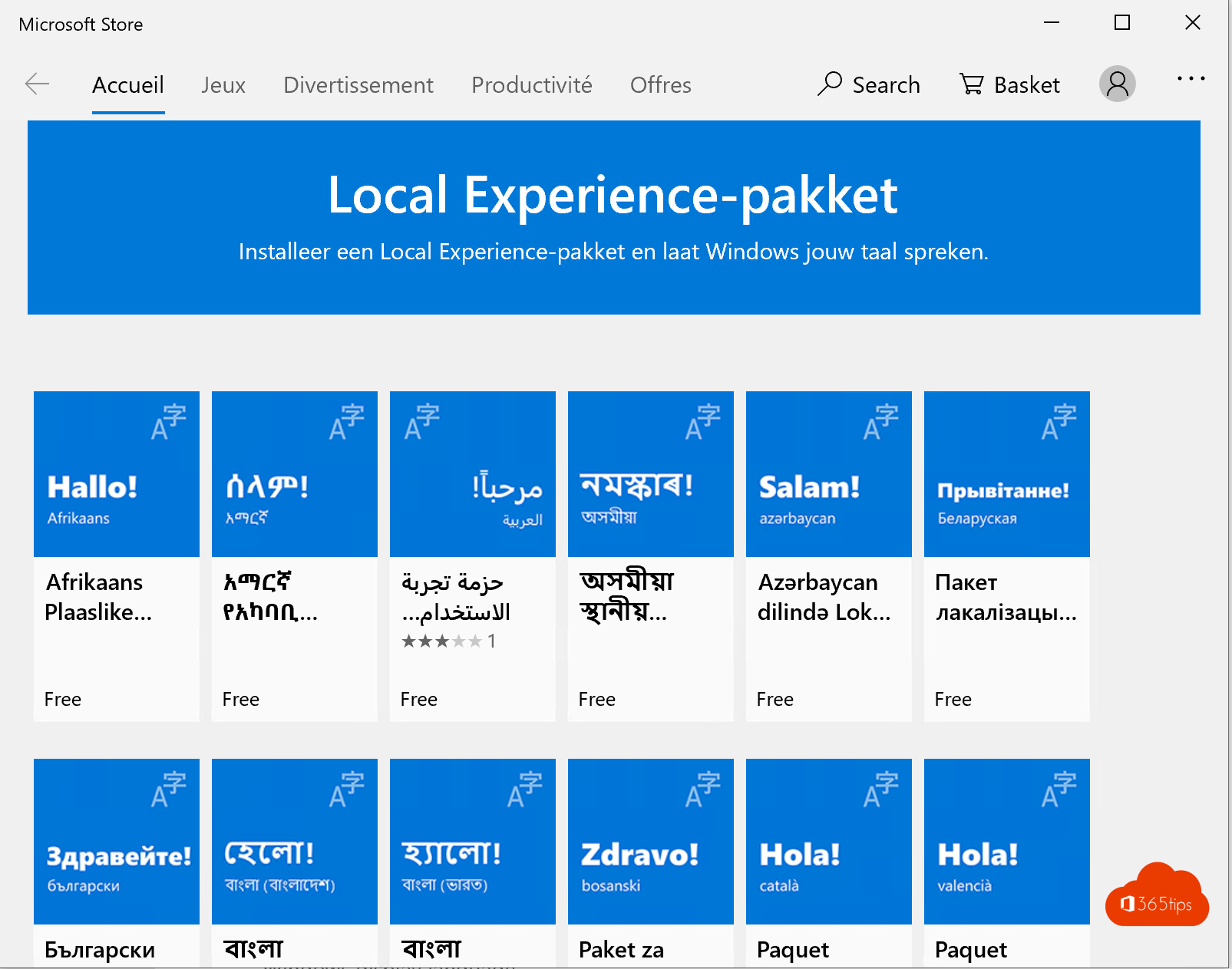
A new laptop often comes set to English or to a language you don't use day to day. You can change the Windows display language, region and keyboard yourself, for example to Dutch (Belgium) or any other language. This article shows how in Windows 11, with a short note for Windows 10 users.
Change the display language
- Open Settings (Windows + I) > Time & language > Language & region.
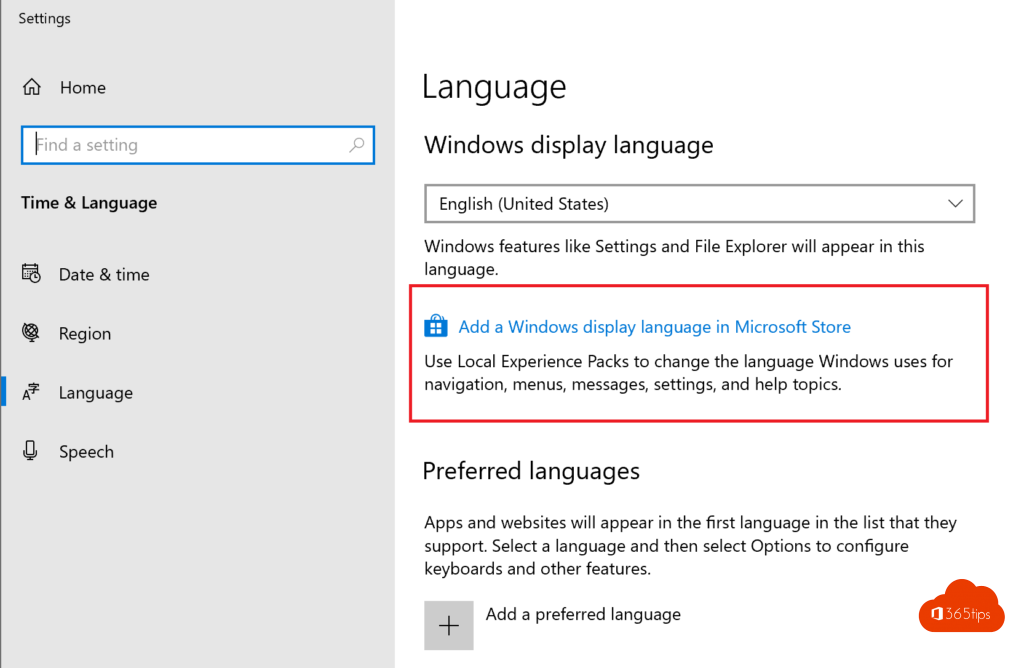
- Next to Preferred languages, select Add a language.
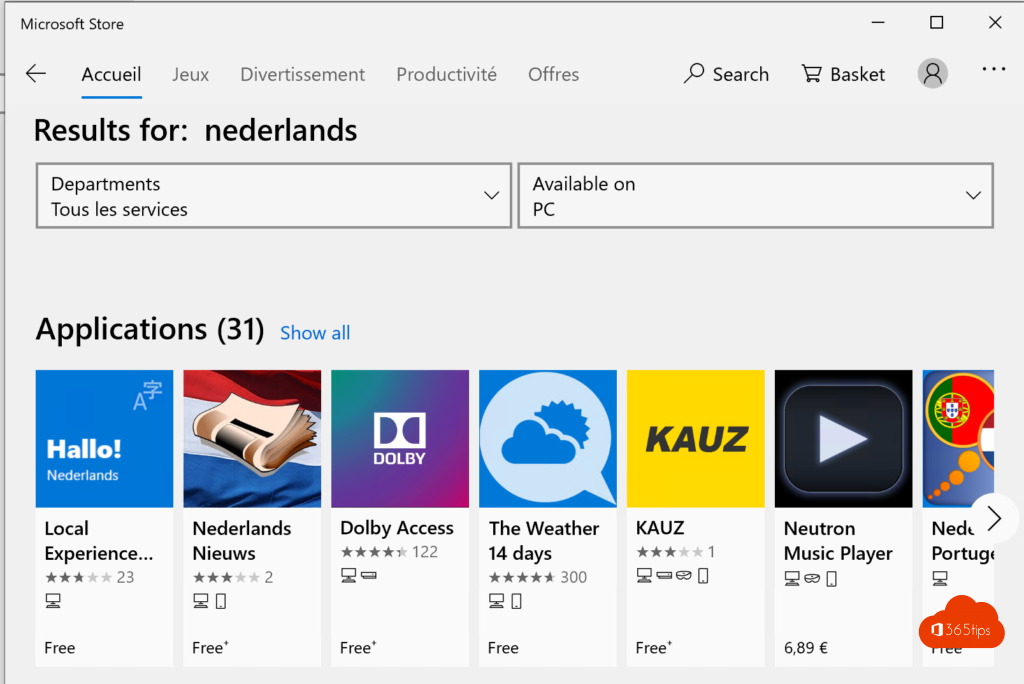
- Search for the language, for example Nederlands (België), and select Next.
- Tick Set as my Windows display language and select Install.
- Sign out and back in. Windows now uses the new language.
Region and format
The language controls the menus; the region controls dates, numbers and currency. On the same page, set:
- Country or region, for example Belgium.
- Regional format, for example Dutch (Belgium). You then get dates like 19/10/2026 and a comma as decimal separator, in Excel too.
The right keyboard
Next to the language, select the three dots > Language options > Keyboards. Add the layout you use, such as Belgian (Period) for a standard Belgian AZERTY keyboard, and remove layouts you don't need. Switch between them with Windows + Space.

On the sign-in screen too
The sign-in screen and new users sometimes keep the old language. Go to Language & region > Administrative language settings > Copy settings and tick Welcome screen and system accounts and New user accounts. This requires admin rights.
Not working?
- Seeing Only one language pack allowed? You have Windows 11 Home Single Language. You can't change the display language there without upgrading to Windows 11 Home or Pro.
- On a work laptop, IT may lock the language through Intune or Group Policy.
- Microsoft 365 apps follow the Windows language by default.
Personalise further with themes and dark mode in Windows 11.
Read also
Set or create a theme in Windows 11
How to turn on dark mode in Windows 11
How to customize the Windows 11 Start menu: left, without Recommended or like Windows 10
Nederlandstalige versie: De taal van Windows instellen op Nederlands (België)