You type an a and get a q? Then your keyboard has accidentally switched layouts, for example from AZERTY to QWERTY. That often happens through a shortcut. This article shows how to switch back, add the right layout and remove the ones you don't need so it doesn't happen again.
Switch back quickly
- Press Windows + Space and choose the right layout in the list.
- Or select the language code (such as ENG or NLD) at the bottom right of the taskbar and choose your layout.
The cause is usually Left Alt + Shift or Windows + Space pressed by accident.

Add the right layout
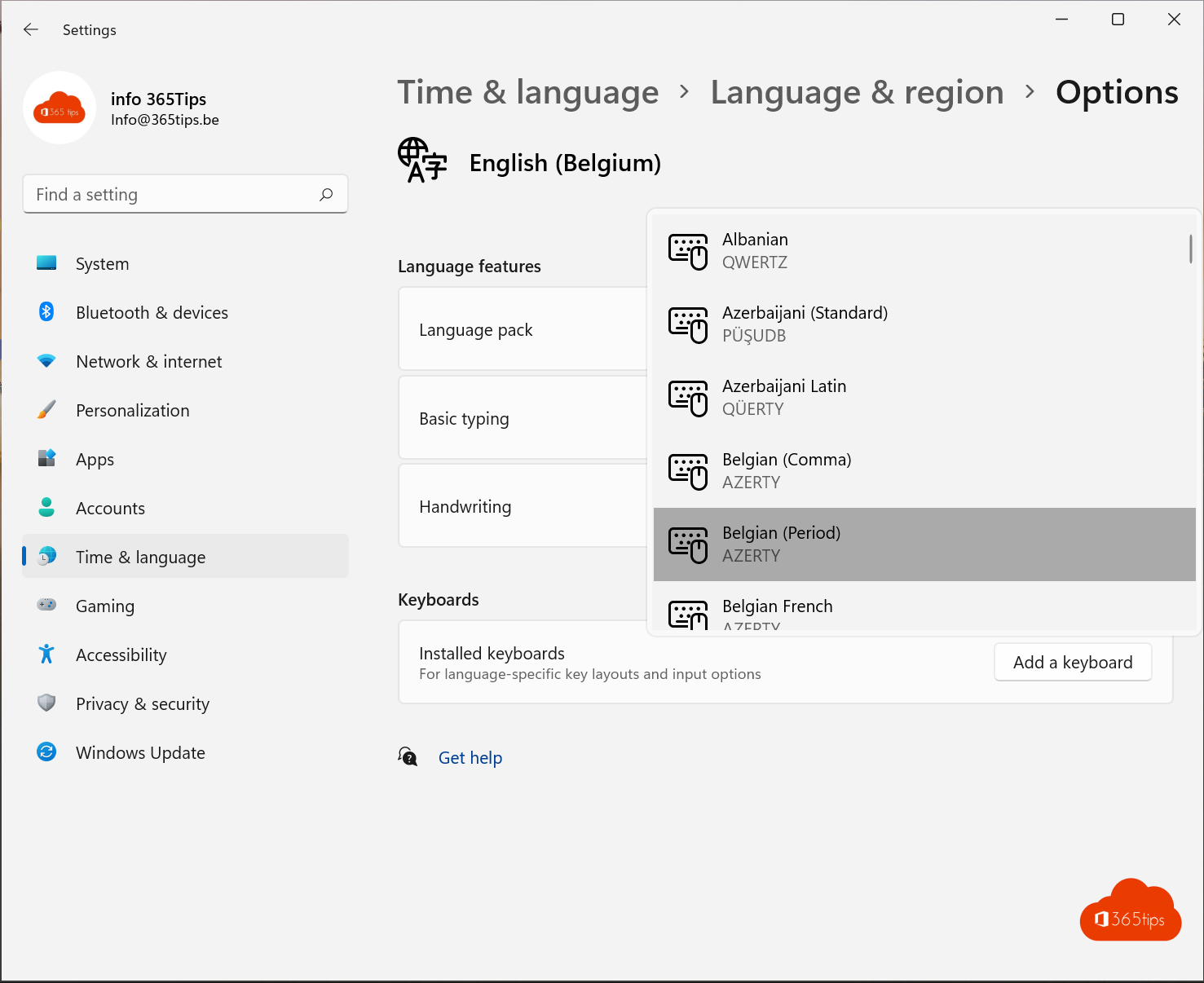
- Go to Settings > Time & language > Language & region.
- Next to your language, select the three dots > Language options.
- Under Keyboards, select Add a keyboard and choose your layout, for example Belgian (Period) for a standard Belgian AZERTY keyboard, or US for QWERTY.

Remove extra layouts
Still see a layout you don't use? Select the three dots next to it > Remove. If the layout sits under another language (for example English (United States)), remove that language or the keyboard under it. With only one layout, you can't switch by accident.

Turn off the shortcut
Need several layouts but no accidental switching? Go to Settings > Time & language > Typing > Advanced keyboard settings > Input language hot keys and turn off the Left Alt + Shift shortcut.
On the sign-in screen too
Is the keyboard wrong on the sign-in screen, so your password fails? Choose the right layout at the bottom right of the sign-in screen. Then copy your settings to the welcome screen via Language & region > Administrative language settings. Read also change the Windows display language.
Read also
Change the Windows display language, region and keyboard
The most useful keyboard shortcuts for Windows 11
How to install a font in Windows 11 and 10
Nederlandstalige versie: Je toetsenbord terugzetten van QWERTY naar AZERTY in Windows 11