
Spotted an interesting post on LinkedIn but don't have time to read it now? Save it. You'll find your saved posts and articles later under My items. Here's how it works on your computer and on your phone.
Why save posts?
- Read later: keep articles and discussions for a quieter moment.
- Inspiration: collect good examples for your own posts.
- Respond later: come back to a post you still want to reply to or share.
Saving is private. The author doesn't see that you saved their post.
Save a post
- Find the post in your feed.
- Click or tap the three dots in the top right of the post.
- Choose Save.
The ribbon icon from older versions is gone; saving now happens through this menu. The exact location may vary.
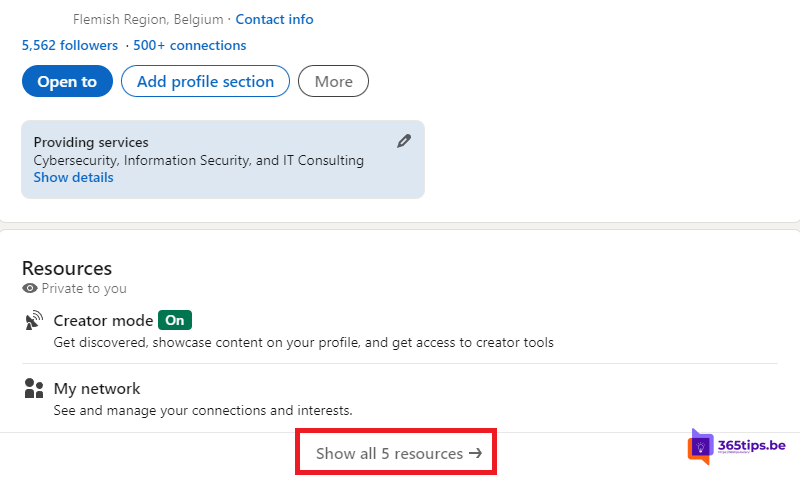
Find saved posts on your computer
- Open linkedin.com and go to your home page.
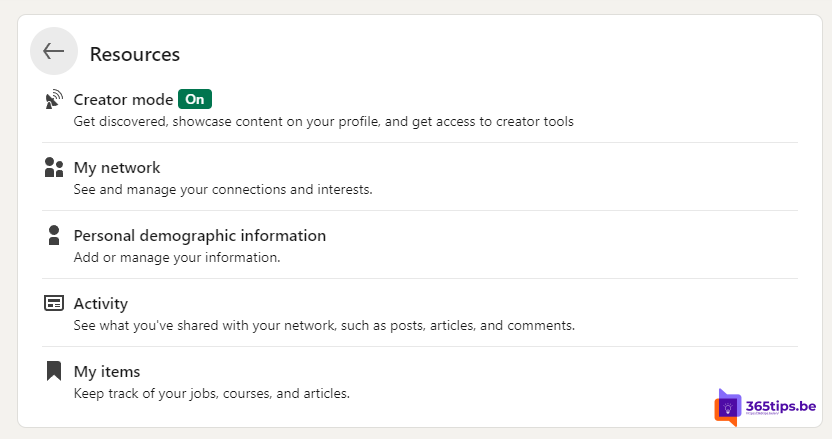
- In the left column, below your profile card, click Saved items or My items.
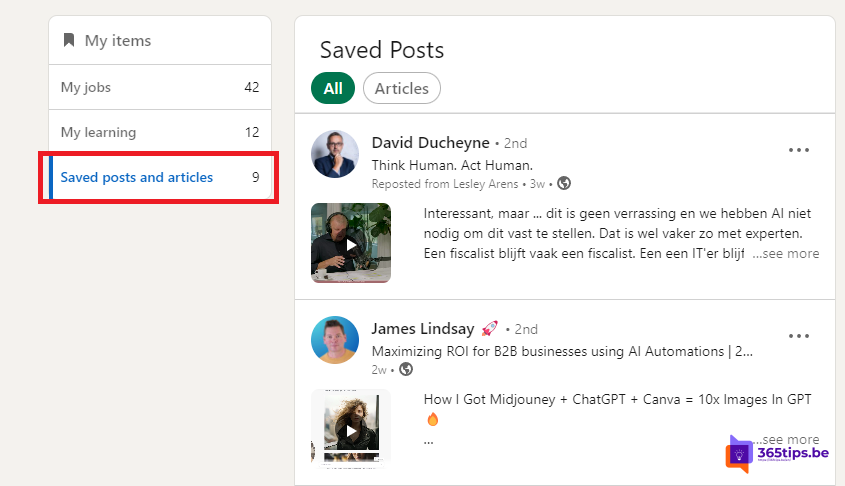
- Choose Saved posts and articles to see your list.
You can also go to My items via your profile picture in the top right (Me), or go straight to linkedin.com/my-items/saved-posts/.
Find saved posts in the app
- Open the LinkedIn app and tap your profile picture in the top left.
- Tap Saved posts or My items. If it isn't there, check under Settings or on your profile page.
Clean up your list
Read a post? In your list, click the three dots next to it and choose Unsave. That keeps your list tidy.
Also see how to schedule a post on LinkedIn and how to delete your LinkedIn account.
Read also
Schedule a post on LinkedIn
Delete your LinkedIn account (or put it in hibernation)
How to chat with yourself in Microsoft Teams
Nederlandstalige versie: Opgeslagen berichten terugvinden op LinkedIn