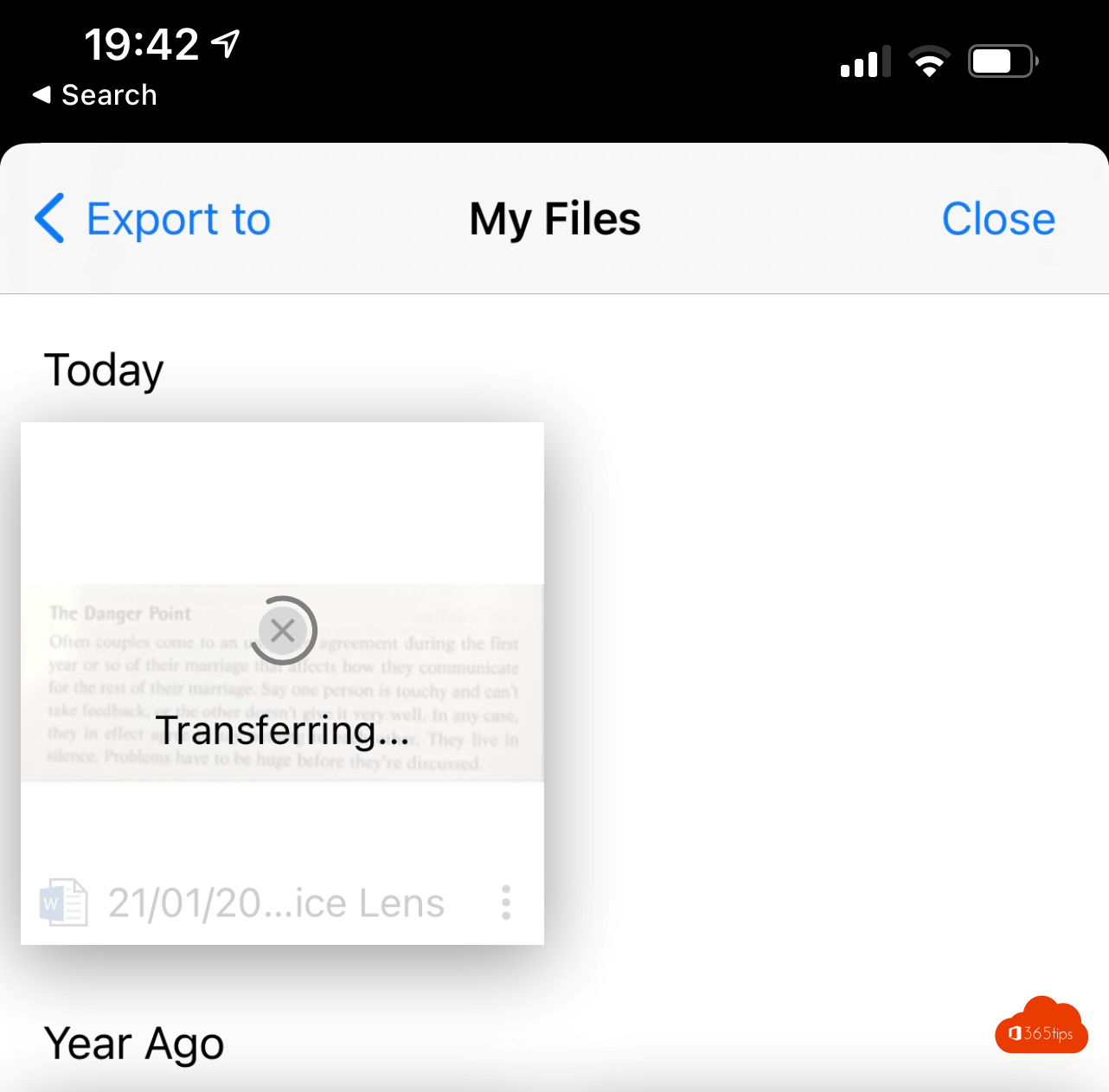
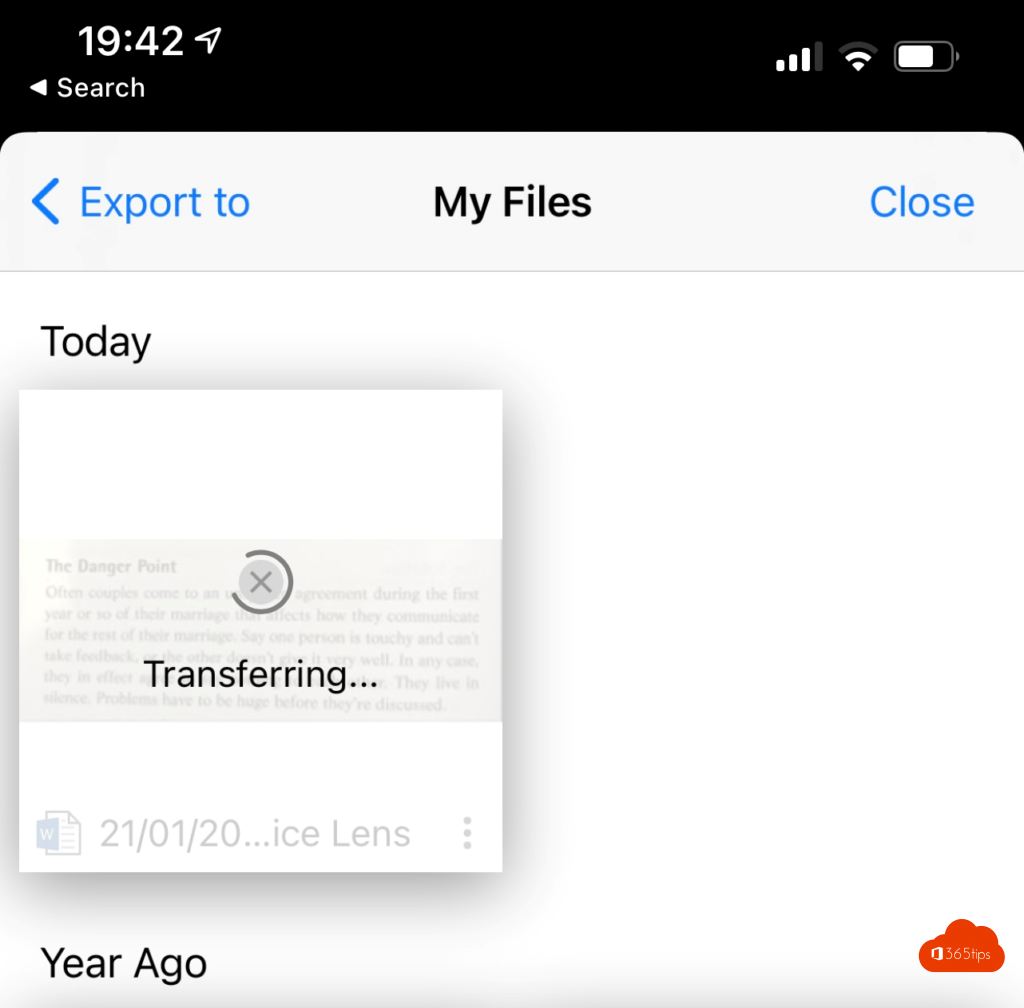
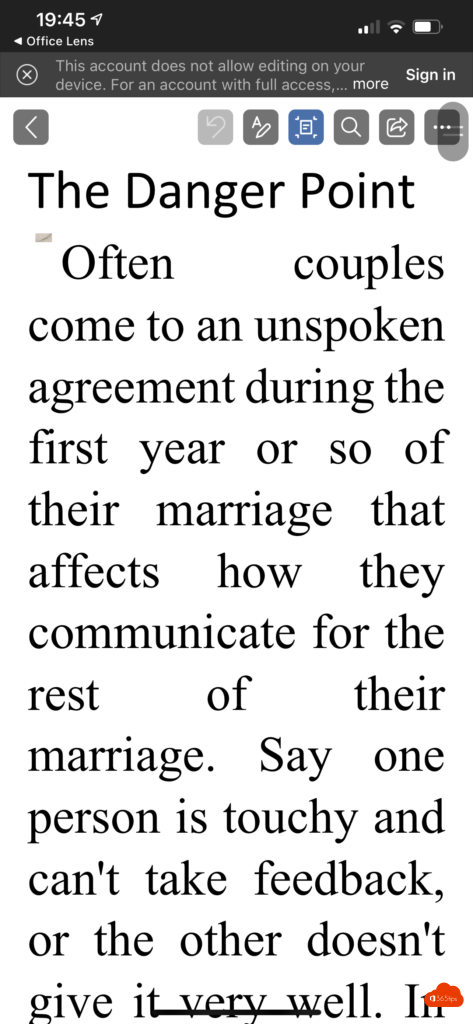
Do you have a paper document, a photo of a letter or a scanned PDF and want to edit the text? Then you need OCR: text recognition that turns an image back into normal text. You used to do this with the Office Lens app. That app has been retired, but Microsoft 365 now has other ways to do the same thing.
1. Scan with the OneDrive app
- Open the OneDrive app on your phone.
- Tap + or the camera icon > Scan.
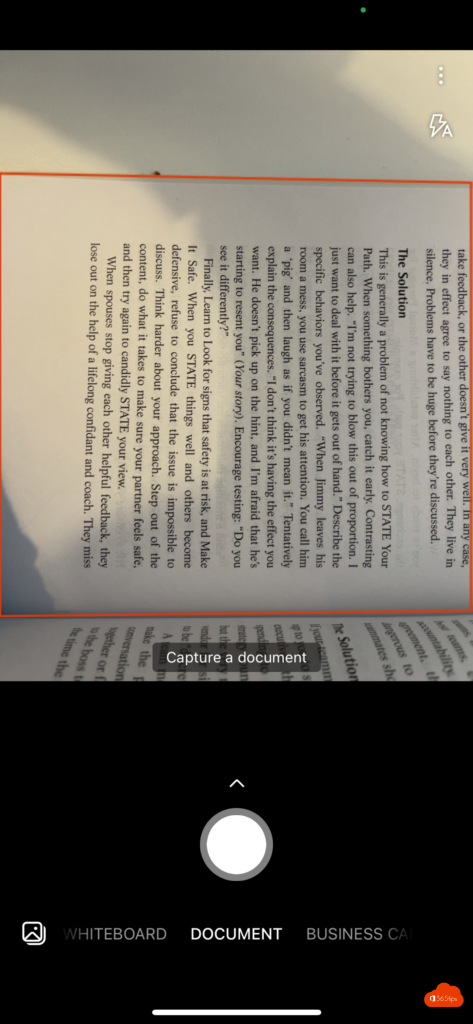
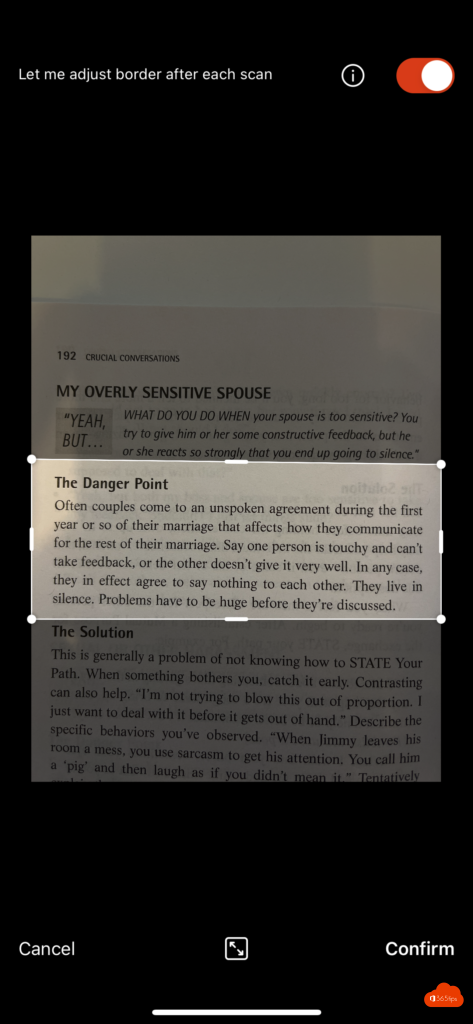
- Choose Document, point the camera at the page and take the photo. The app crops the edges and straightens the page.
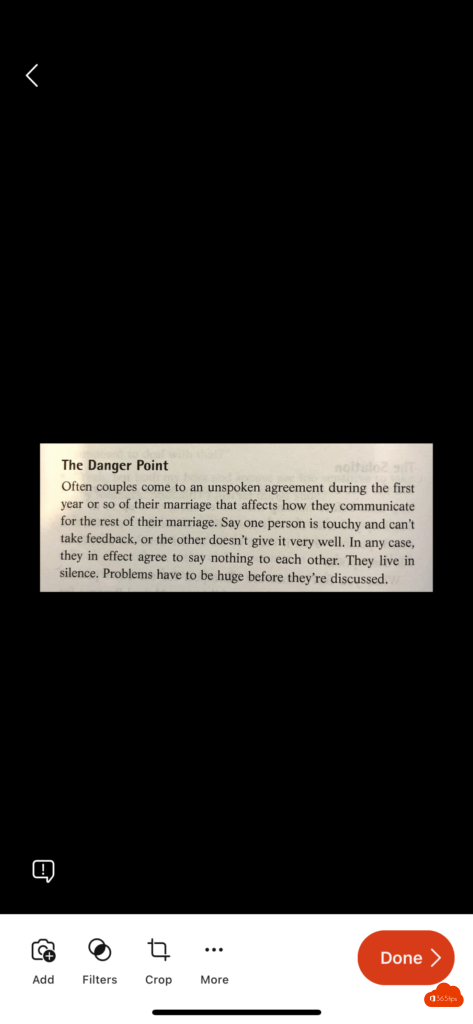
- Add more pages if needed and save. Your scan is stored as a PDF in OneDrive.
2. Edit the PDF in Word
Open the PDF in the Word desktop app via File > Open. Word tells you it will convert the PDF into an editable document. This works best with clear text; tables and formatting sometimes need a little fixing. See also save a Word document as PDF.
Other ways
- OneNote: paste an image, right-click it and choose Copy Text from Picture.
- Excel: use Data > From Picture (or Insert data from picture in the mobile app) to turn a printed table into cells.
- Windows 11: take a capture with the Snipping Tool and choose Text actions to copy the text.
- Copilot: with a Copilot license you can upload an image and ask it to extract or summarize the text.
Tips for a good scan
Scan in good light, lay the paper flat on a dark surface and hold the phone straight above the page. The sharper the scan, the fewer mistakes in the recognized text.
Read also
Save a Word document as PDF on Windows, Mac and the web
Get started with OneNote in Microsoft 365: guide and tips
The 10 most useful features of OneDrive for work or school
Nederlandstalige versie: Een papieren document of scan omzetten naar bewerkbare tekst