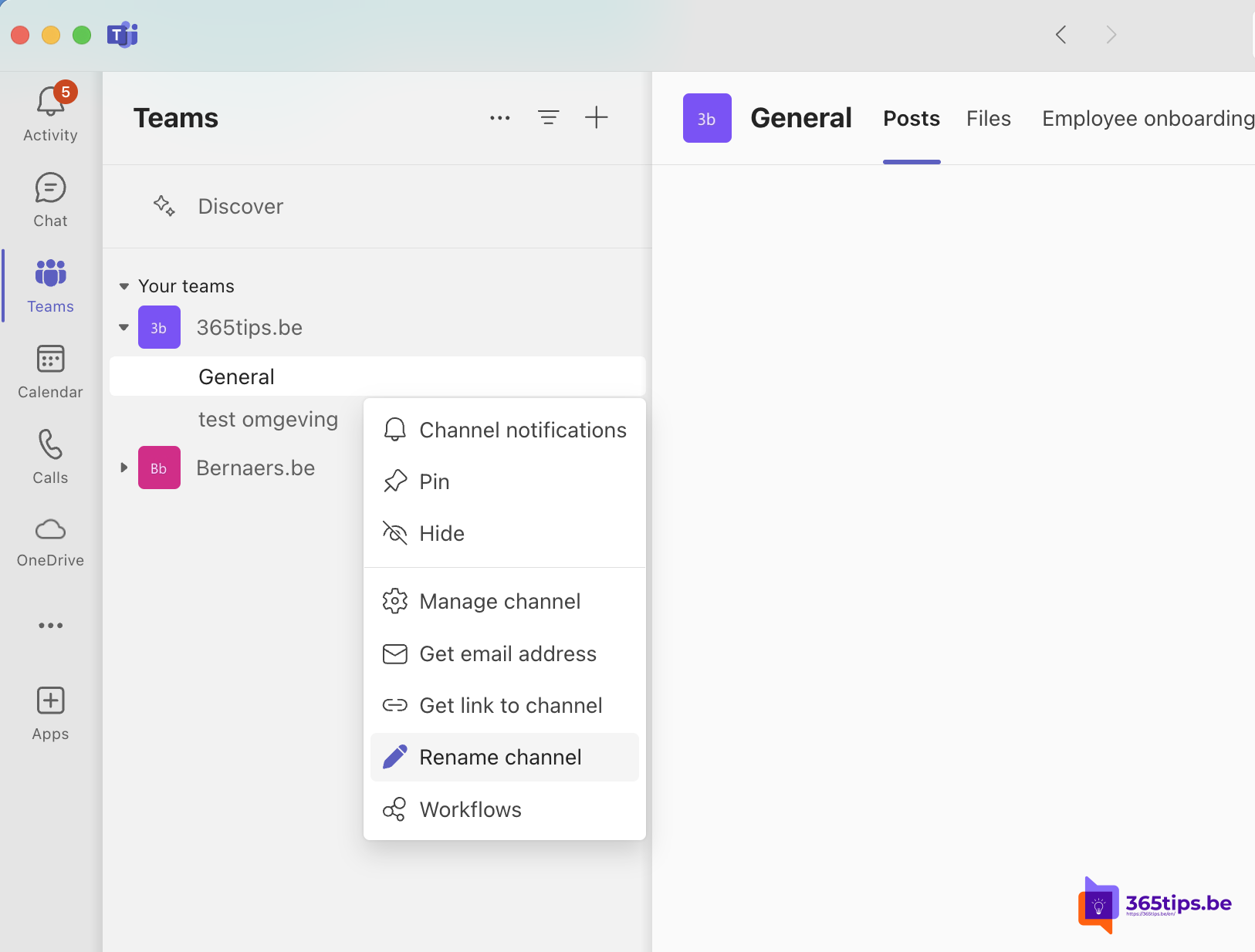
How to Rename the 'General' Channel in Microsoft Teams
Microsoft Teams is a popular tool for collaboration and communication within teams and organizations. By default, every team you create in Microsoft Teams comes with a channel called ‘General’. Although this channel is a handy place for general discussions and announcements, many users prefer to give this channel a name that better fits the context of their team. Fortunately, it is now possible to give the ‘General’ channel a custom name. In this blog post, I explain step by step how to do this.
Why rename the 'General' channel?
Renaming the ‘General’ channel can help you better organize your Teams environment and make it more tailored to the needs of your team. A custom name can make it clearer what the purpose of the channel is and can prevent confusion, especially if you have multiple channels in one team.
Steps to rename the 'General' channel
Follow these simple steps to rename the ‘General’ channel in Microsoft Teams:
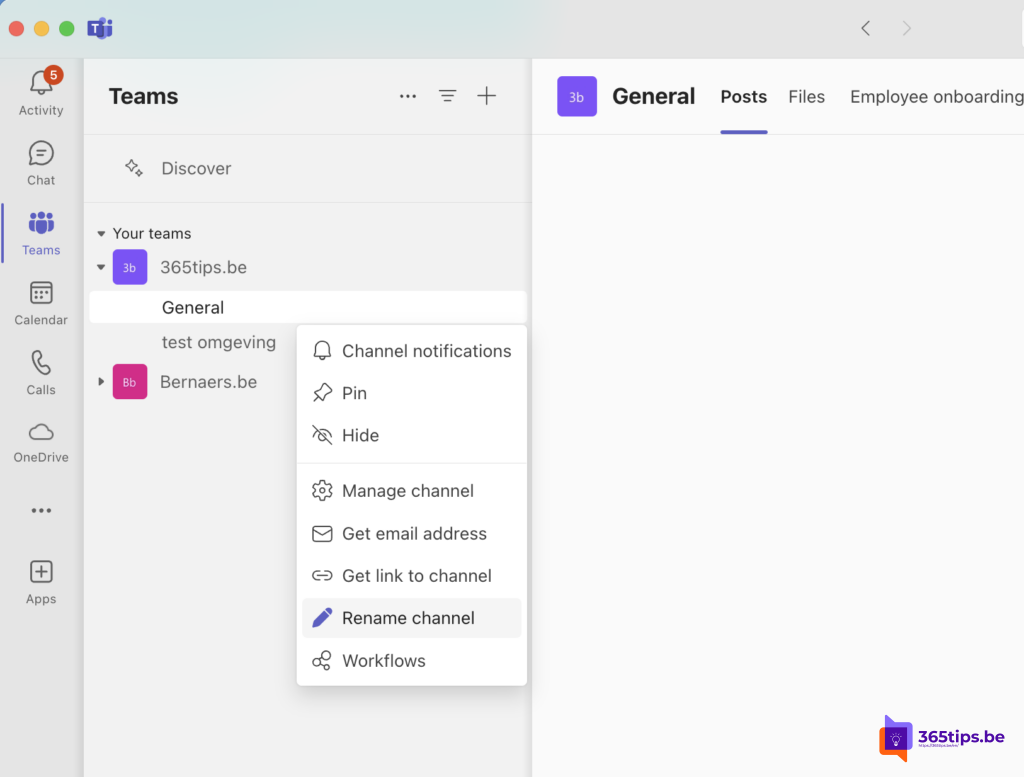
- Open Microsoft Teams: Make sure you are logged in with an account that has sufficient permissions to change team settings. You usually need the owner or co-owner role for this.
- Go to the team where you want to rename the channel: Navigate in the sidebar to the team where the ‘General’ channel is located.
- Select the 'General' channel: Right-click on the ‘General’ channel or click the three dots next to the channel name to open the context menu.
- Choose 'Manage channel': In the context menu, select the ‘Manage channel’ option. This opens the settings for that specific channel.
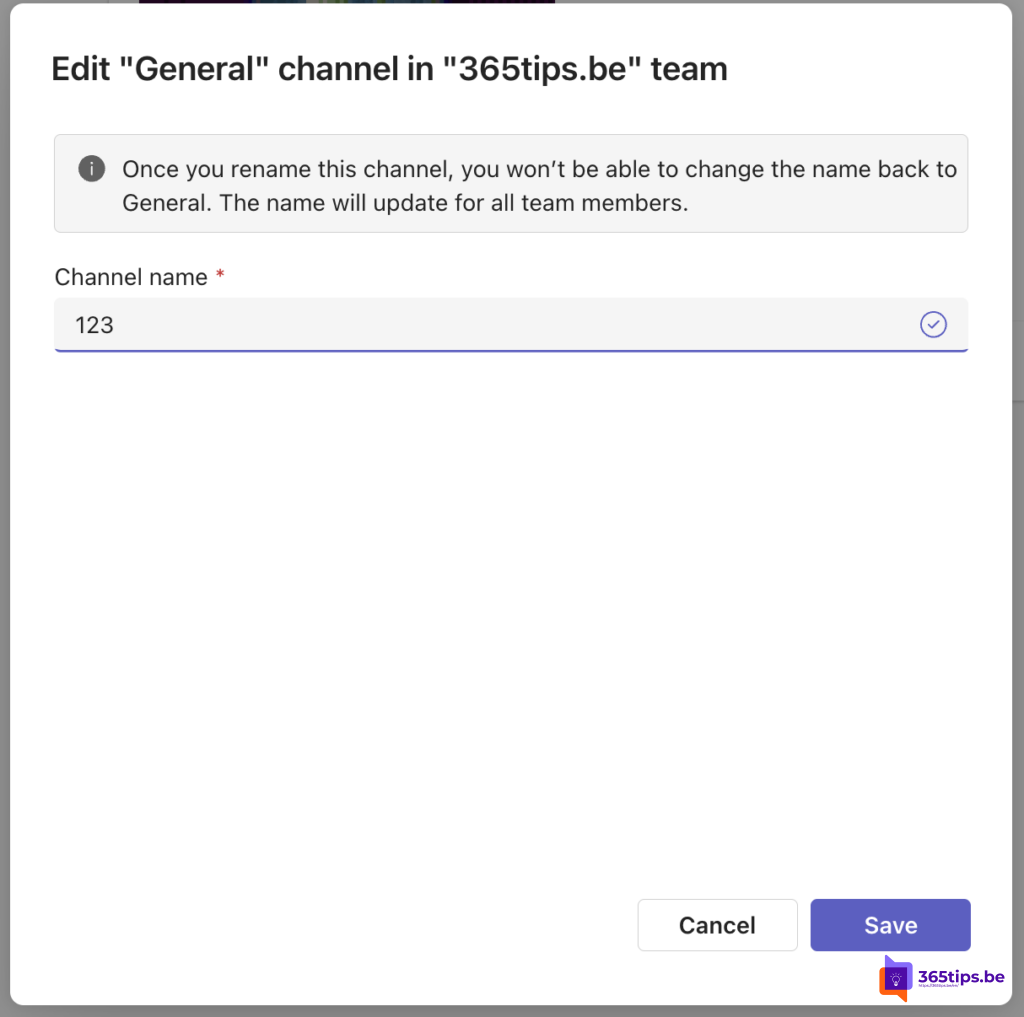
- Rename the channel: In the settings, you will see the option to change the channel name. Click on the text field with the name ‘General’, delete the text and type the new name you want to use.
- Save the changes: After entering the new name, click the ‘Save’ or ‘Save changes’ button to complete the rename.
What you should know
- May not be available to everyone: The ability to rename the ‘General’ channel is currently being rolled out and may not yet be available to all users. Check regularly to see if the option is available in your environment.
- Impact on Teams: Keep in mind that renaming the ‘General’ channel may affect certain Teams features or integrations that depend on the original name. Test the new name thoroughly to ensure everything continues to work correctly.
Conclusion
Renaming the ‘General’ channel in Microsoft Teams is a simple way to improve the organization of your team and make communication within your team clearer. By following the steps above, you can easily change the name to something that better suits the way your team works.
Stay up to date with updates and new features in Microsoft Teams so you can always get the most out of your collaboration environment!