In a world where communication and collaboration are crucial, Microsoft Teams has become one of the most widely used tools. It offers a wide range of features that contribute to efficient collaboration. A recent addition that is sure to appeal to many users is the ability to set custom sound notifications. This can help to personalize notifications and ensure you don’t miss important messages.
What are custom sound notifications in Microsoft Teams?
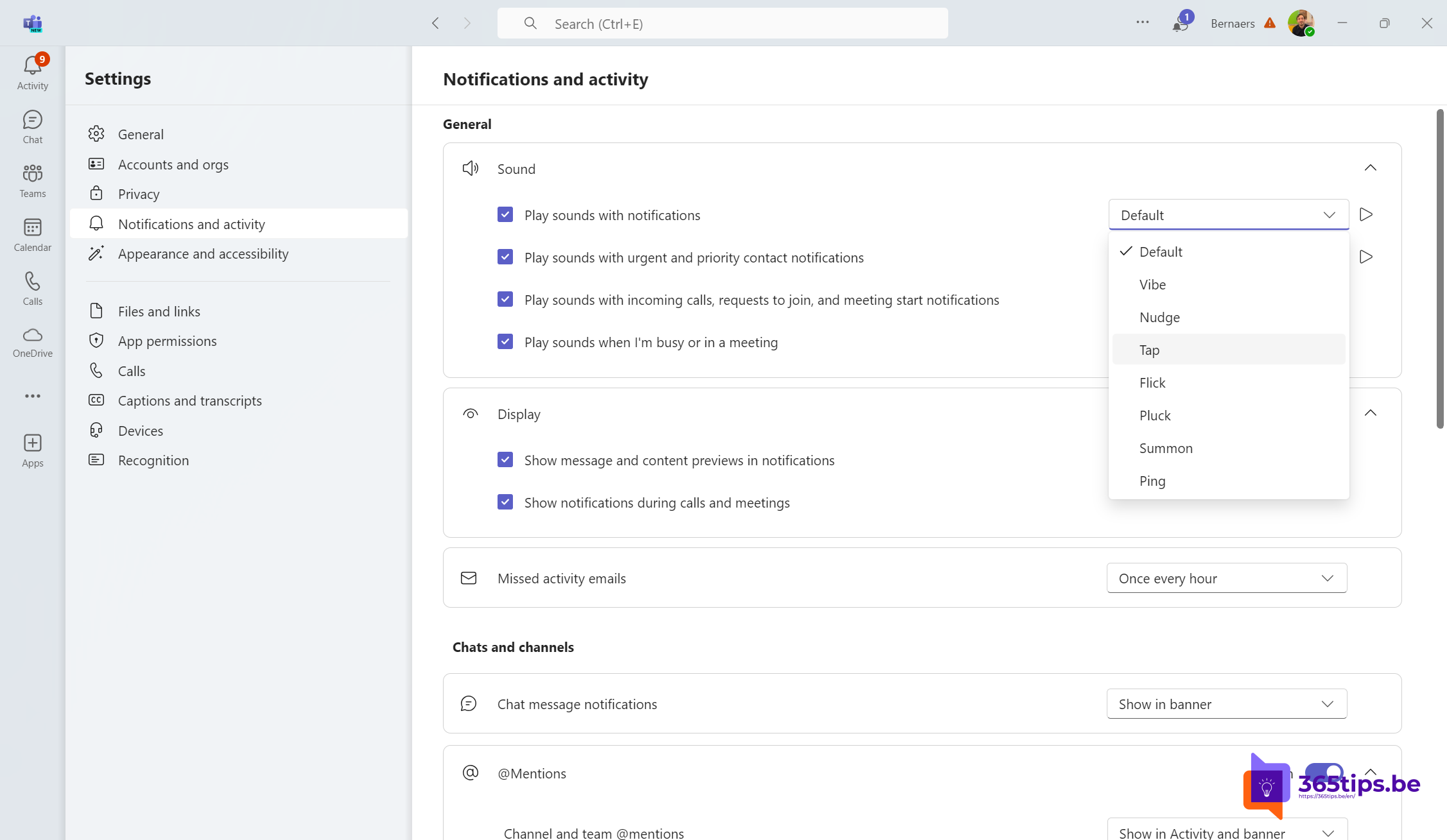
Microsoft Teams has recently introduced a new feature that allows users to set custom sound notifications for different types of notifications. Instead of using the default sounds, users can now choose sounds that better match their preferences or that help them distinguish notifications more easily.
Why are custom sound notifications useful?
- Personal preferences: Everyone has their own preference when it comes to notification sounds. What is pleasant for one person can be annoying for another. By offering the ability to customize these, Teams accommodates these personal preferences.
- Improved attention: Specific sounds can help you immediately recognize which type of notification is coming in, without having to look at the screen. This is especially useful in a busy work environment or when you receive multiple notifications.
- More efficient workflow: By giving important notifications a unique sound, you can respond more quickly to critical messages and tasks. This contributes to a more efficient workflow and better time management.
How to set custom sound notifications in Microsoft Teams?
Setting up custom sound notifications in Microsoft Teams is simple and can be done in a few steps:
- Go to Settings: Open Microsoft Teams and click on your profile picture in the top right corner. Then select ‘Settings’ from the dropdown menu.
- Notifications: In the settings menu, click on ‘Notifications’. Here you can manage various notification options.
- Customize sound notifications: In the notifications menu you’ll see a section for ‘Sound notifications’. Here you can change the default sounds by clicking on the desired notification and selecting a new sound from the available options.
- Save and test: After you have set the desired sound notifications, make sure you save the changes. It’s also a good idea to send a test notification to check that everything works as desired.
Conclusion
With the new feature for custom sound notifications in Microsoft Teams, you can personalize your notifications and improve your workflow. Whether you have a specific preference for a certain sound or want to better organize your notifications, this feature offers the flexibility you need. Try it out today and experience the difference!
Visit the original Microsoft blog post for more detailed information: Set custom sound notifications in Microsoft Teams.