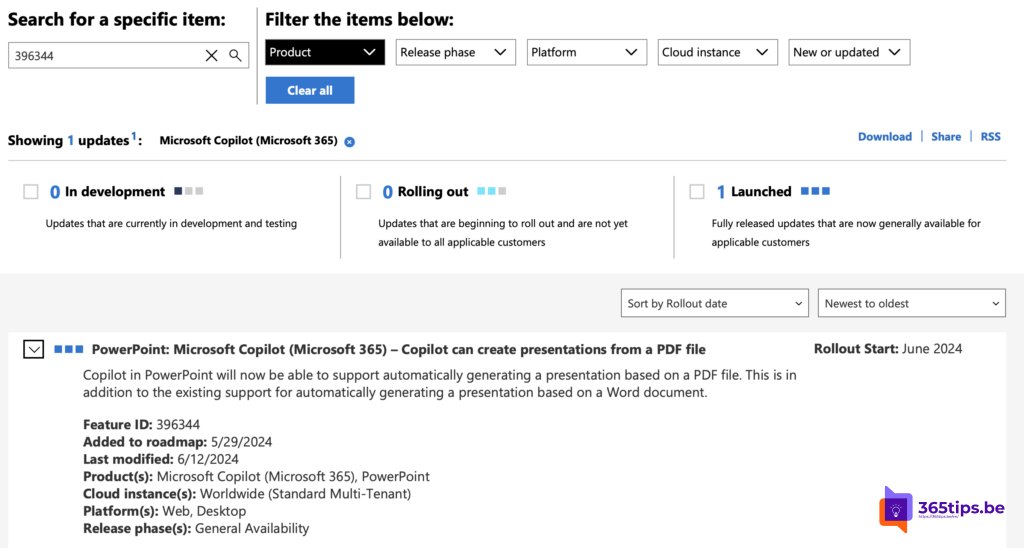
We have great news for all Microsoft 365 users! It is now possible to automatically generate PowerPoint presentations from a PDF file using Microsoft Copilot. This new functionality, added to the roadmap under Feature ID 396344, was announced on May 29, 2024 and recently updated on June 12, 2024. This means you can create professional presentations even more efficiently and quickly.
What is Microsoft Copilot?
Microsoft Copilot is an intelligent assistant integrated into Microsoft 365 applications, designed to help you automate tasks and boost your productivity. Previously, Copilot could already generate presentations from Word documents, but with this new update it can now also do so from PDF files.
Availability and Platforms
- Products: Microsoft Copilot (Microsoft 365), PowerPoint
- Cloud instances: Worldwide (Standard Multi-Tenant)
- Platforms: Web, Desktop
- Release phases: General Availability
How does it work?
Here are the steps to generate a presentation from a PDF file with Microsoft Copilot:
- Open PowerPoint: Make sure you are using a version of PowerPoint that supports Microsoft Copilot and that your Microsoft 365 subscription provides access to this feature. Open PowerPoint on your web or desktop platform.
- Access the Copilot feature: Look for the Copilot feature within the PowerPoint interface. You’ll usually find it in the toolbar under tabs such as “Home” or “Insert”. Click on the Copilot icon or option to get started.
- Upload the PDF file: A prompt will appear asking you to upload the PDF file you want to convert into a presentation. Select the PDF file from your device or cloud storage and upload it.
- Automatic generation: Copilot processes the PDF file, extracting text, images and structural elements. It then automatically generates a draft presentation based on the content of the PDF.
- Review and edit the presentation: Once the draft presentation is ready, review each slide to make sure the content has been interpreted and organized correctly. Make any necessary changes to the text, layout and design.
- Enhance the presentation: Use PowerPoint’s built-in tools to add animations, transitions, multimedia elements and other enhancements. Make sure all key points and information from the PDF are accurately conveyed.
- Save and share: Save your final presentation in your preferred location within Microsoft 365. Share the presentation with colleagues or stakeholders via email, a shared link or via collaboration tools such as Microsoft Teams.
Why is it useful to convert a PDF into a PowerPoint presentation?
This new feature saves you time and effort by streamlining the process of creating presentations. Whether you have a report, a research document or another type of PDF, Microsoft Copilot helps you quickly generate a professional-looking presentation, so you can focus on refining and presenting your content.