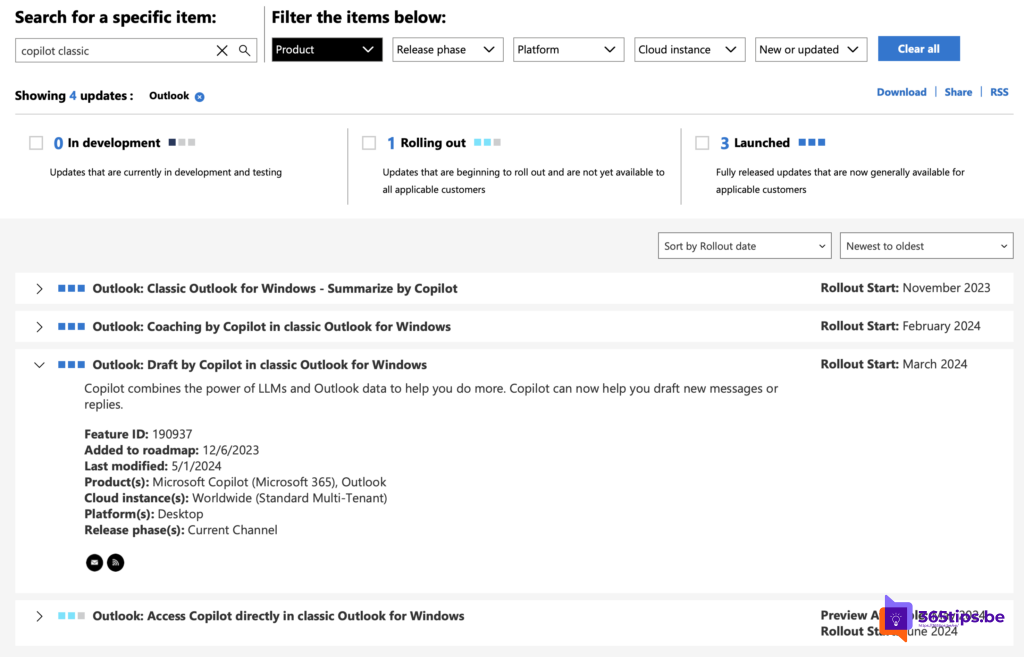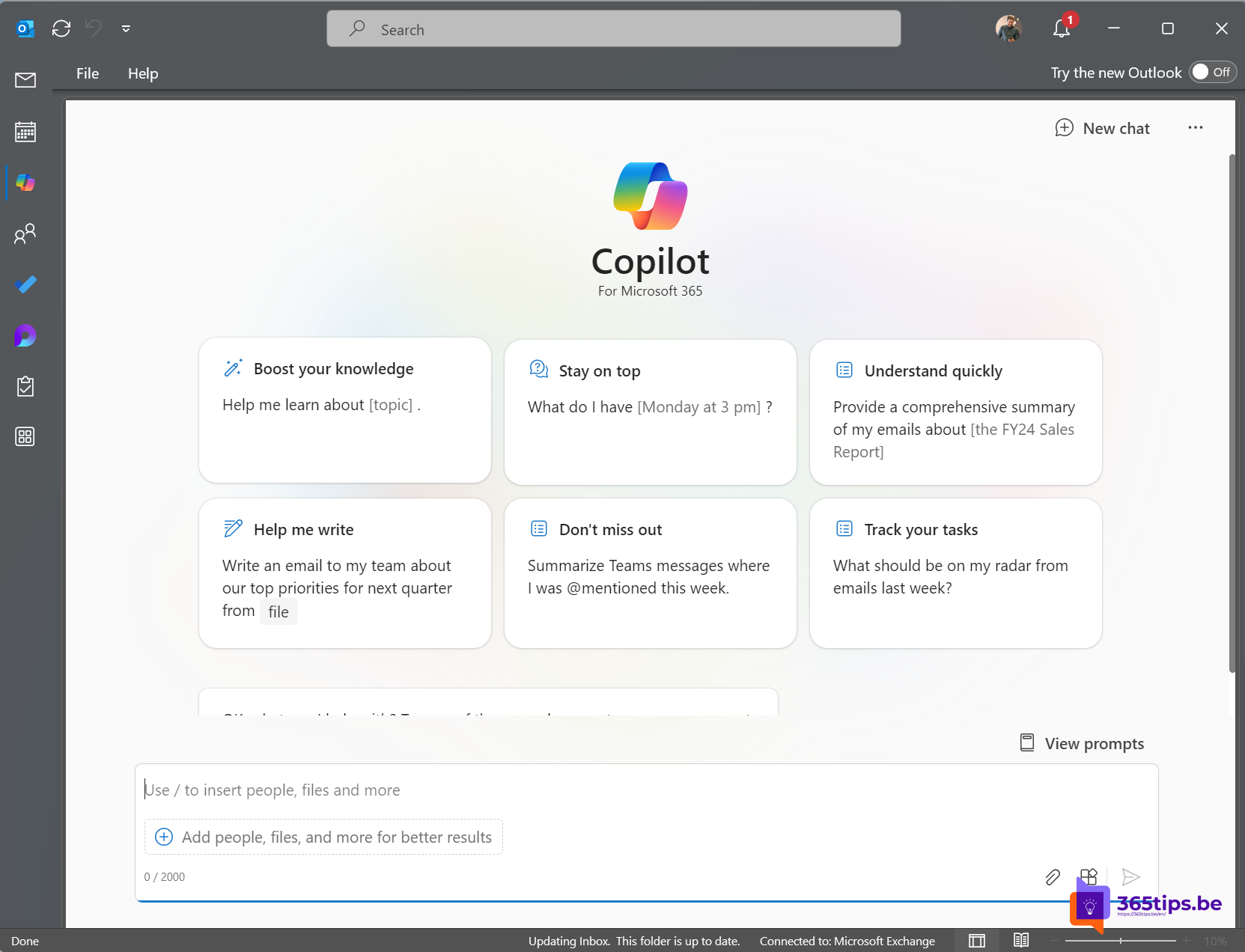
Outlook Classic is a powerful tool for managing emails, calendars and more. With the introduction of Copilot in Outlook Classic on Windows 11, your productivity is taken to the next level. In this blog we explain why Copilot is a valuable addition and how you can get started practically. We also discuss specific applications such as rewriting and summarizing emails.
Why use Copilot?
Copilot is an advanced AI assistant that helps you streamline your email management. Here are some reasons why Copilot can be a valuable addition:
- Time saving: Copilot can automate repetitive tasks, leaving you more time for more important tasks.
- Consistent communication: With Copilot you can rewrite and improve emails, keeping your communication professional and consistent.
- Insight and overview: Copilot can summarize long email conversations, so you can quickly understand the key points without having to read everything.
- Better organization: By categorizing and prioritizing emails, Copilot helps you keep your inbox organized.
Scenario 1: Rewriting an email with Copilot in Outlook
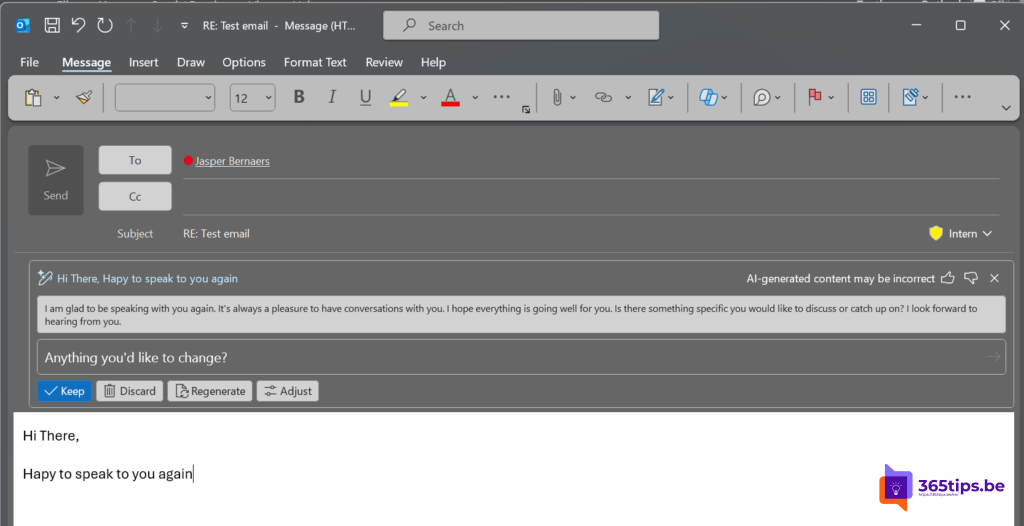
Rewriting emails can help you convey your message more clearly, concisely or professionally. Here is how you can use Copilot for this:
Select the email: Open the email you want to rewrite in Outlook. Click on the Copilot icon in the toolbar.
Choose to rewrite: In the Copilot panel, select the ‘Rewrite email’ option. Specify what your goal is (for example: make it more formal, shorten it, or change the tone).
Review the rewrite: Copilot generates a rewritten version of your email. Review the suggested changes and adjust as desired. Click ‘Apply’ to use the rewritten email.
Scenario 2: Summarizing emails with Copilot in Outlook
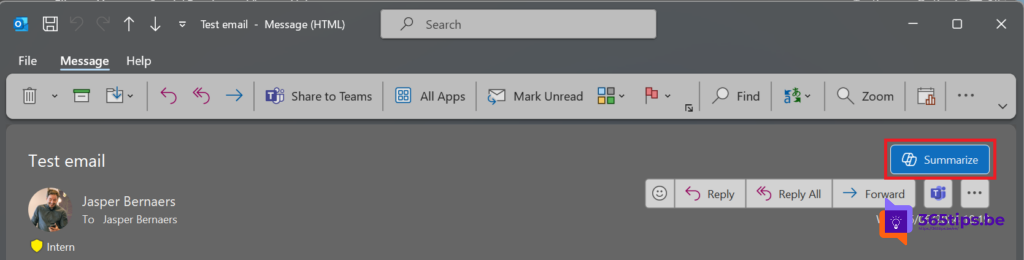
Summarizing long emails or email threads can help you quickly understand the core message without having to read everything. Here’s how to do it with Copilot:
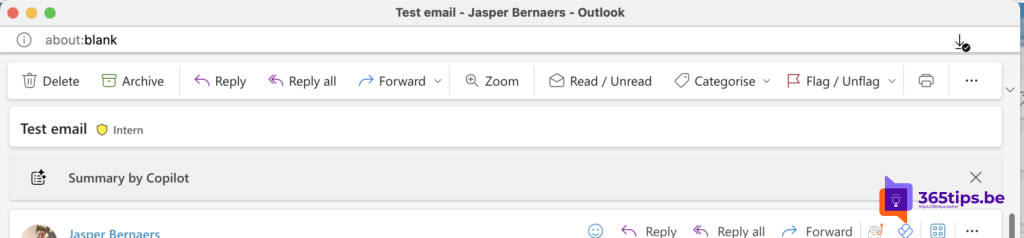
Select the email or thread: Open the long email or email thread you want to summarize. Click on the Copilot icon in the toolbar.
Choose to summarize: In the Copilot panel, select the ‘Summarize email’ option. Copilot analyzes the email and generates a concise summary.
Review the summary: Review the summary generated by Copilot. If the summary is to your liking, you can save or share it. Click ‘Finish’ to complete the summary.
Scenario 3: Summarizing emails with Copilot in Outlook Online
Select the email or thread: Open the long email or email thread you want to summarize. Click on the Copilot icon in the toolbar.
Choose to summarize: In the Copilot panel, select the ‘Summarize email’ option. Copilot analyzes the email and generates a concise summary.
Review the summary: Review the summary generated by Copilot. If the summary is to your liking, you can save or share it. Click ‘Finish’ to complete the summary.
We’re curious how often you have already used Copilot in Outlook Classic. Leave a comment at the bottom of this article.